[TFS 2013] 安裝 TFS 2013 Preview - Standard Single Server
安裝 TFS 2012 的時候就不是什麼太難的事 ,當然 TFS 2013 也不例外
選擇 Standard Single Server 組態精靈它會幫我們
1.安裝 TFS Server
2.安裝 Sharepoint 2013
3.使用 SQL 執行個體
本篇安裝環境
Windows 2012 Datacenter SP1(x64) / SQL 2012 Enterprise(x64)
安裝必要條件:
@SQL-
Database Engine Services
全文檢索搜尋
Analysis Service
Reporting Service
用戶端工具連接性
管理工具-基本
管理工具-完整
@RAM-
4G以上(系統安裝時的檢查條件)
安裝架構-
撒尿牛丸,全部擠成一台
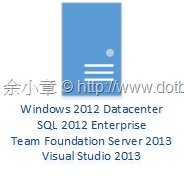
安裝步驟:
Step1.下載 / 安裝 TFS 2013 Preview
Step2.設定 Application Tier
Step3.測試
Step1.下載 / 安裝 TFS 2013 Preview
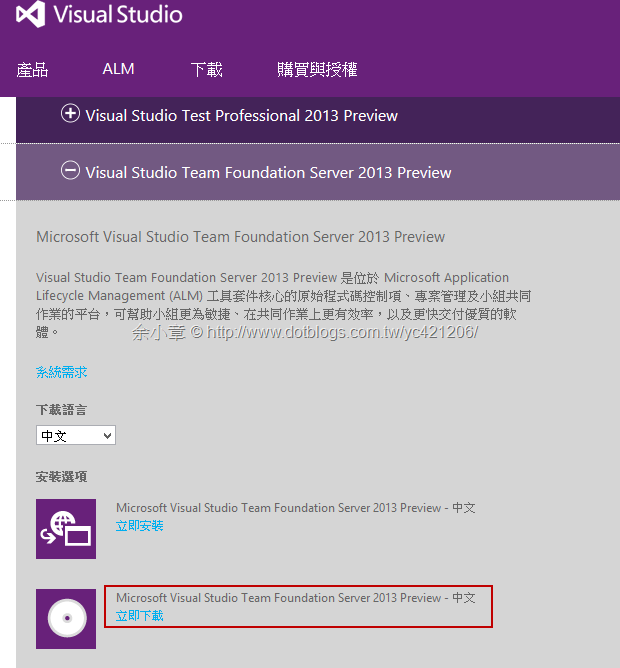
當安裝好 TFS 之後就可以按照以下步驟設定
1.Reboot
2.執行 TFS 管理台
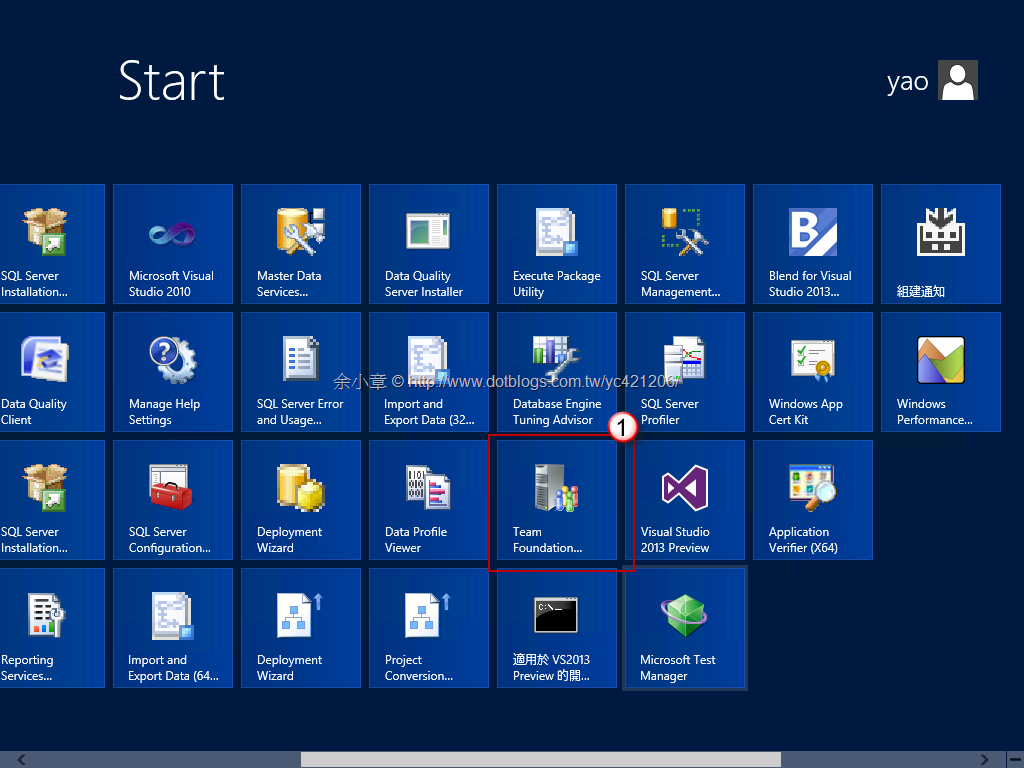
PS.我裝的明明是繁體板,不知是不是因為還是 Perview 所以沒有翻完?
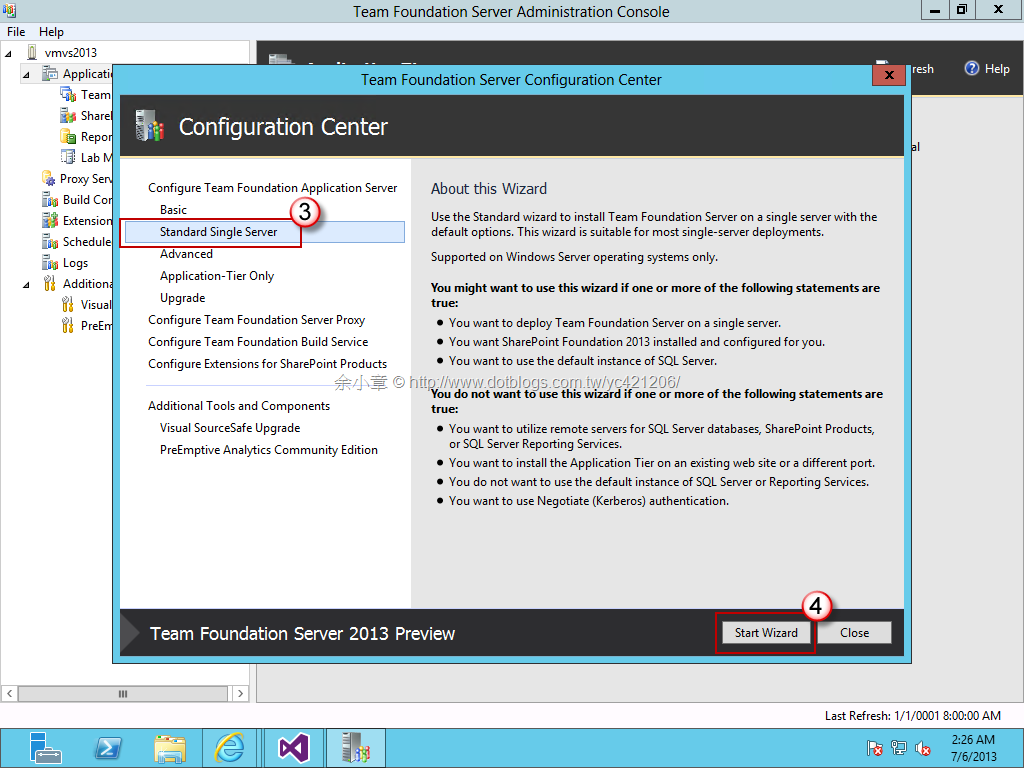
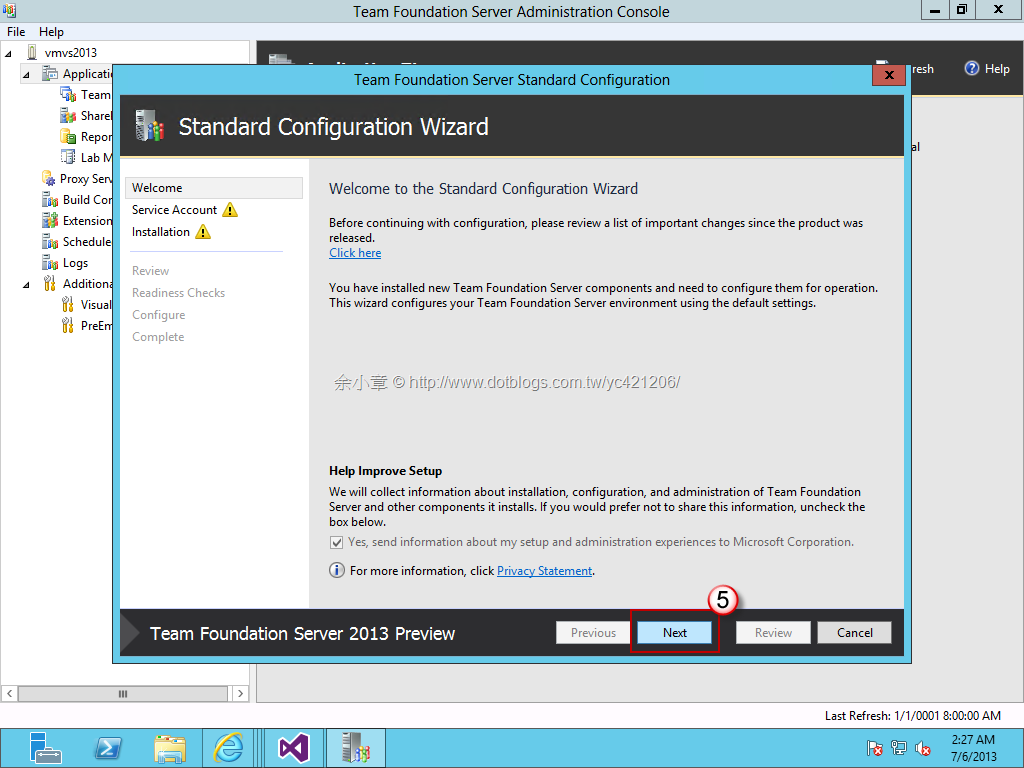
選擇 Standard Single Server,然後啟動設定精靈
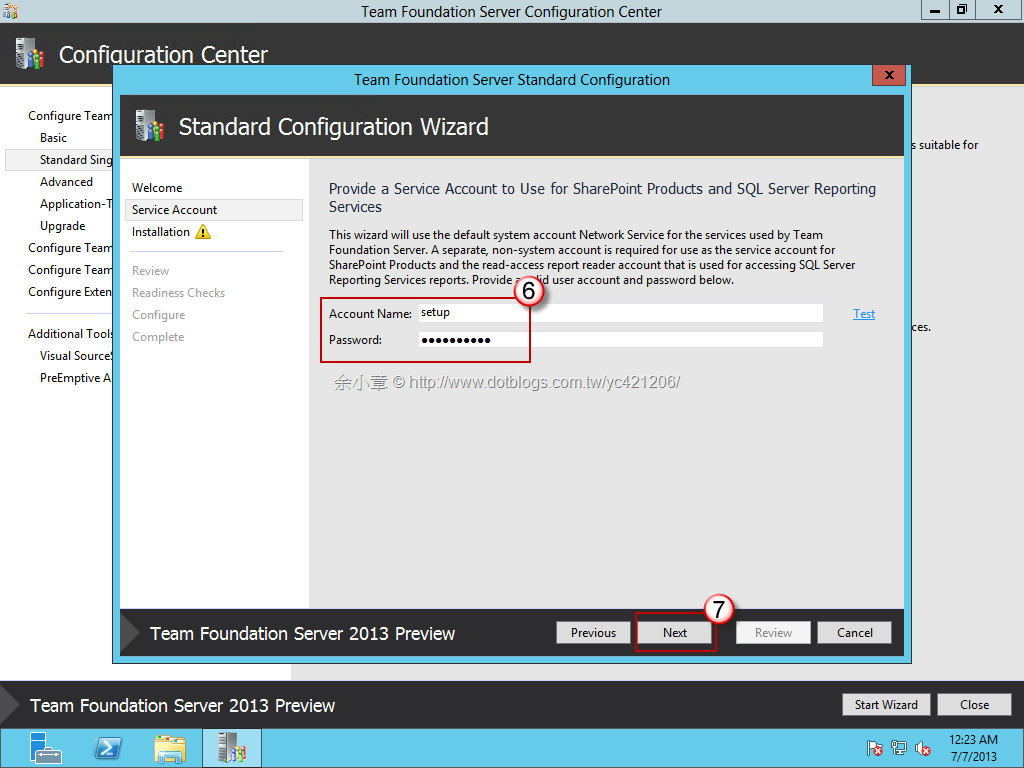
設定 SQL 存取帳號
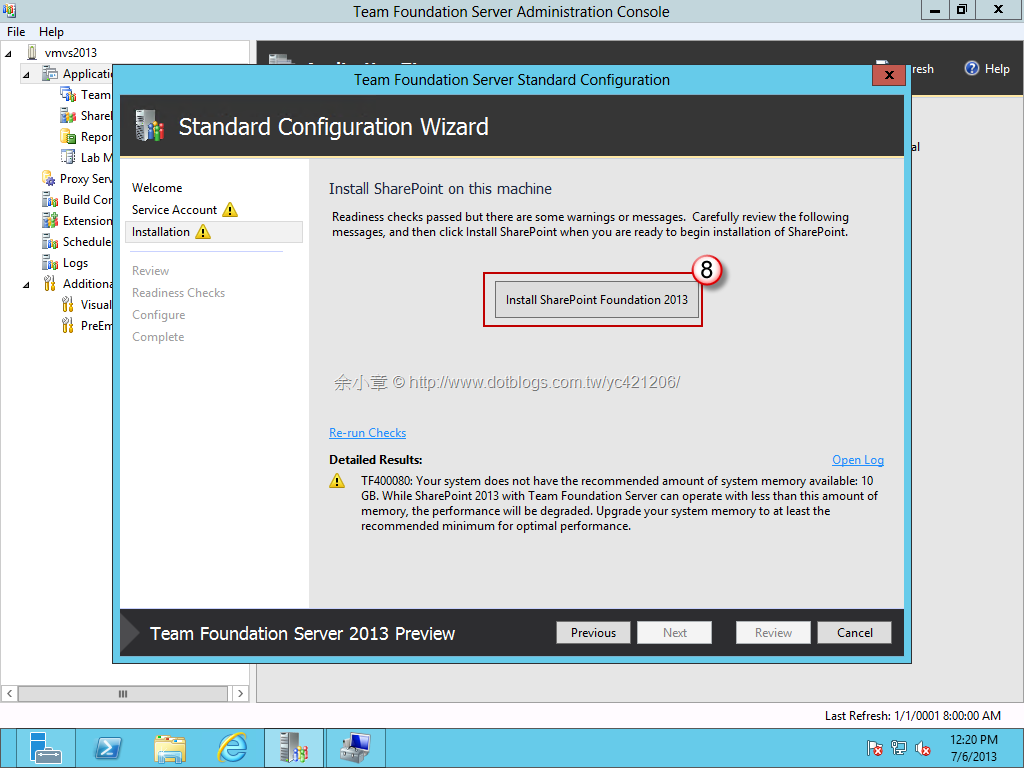
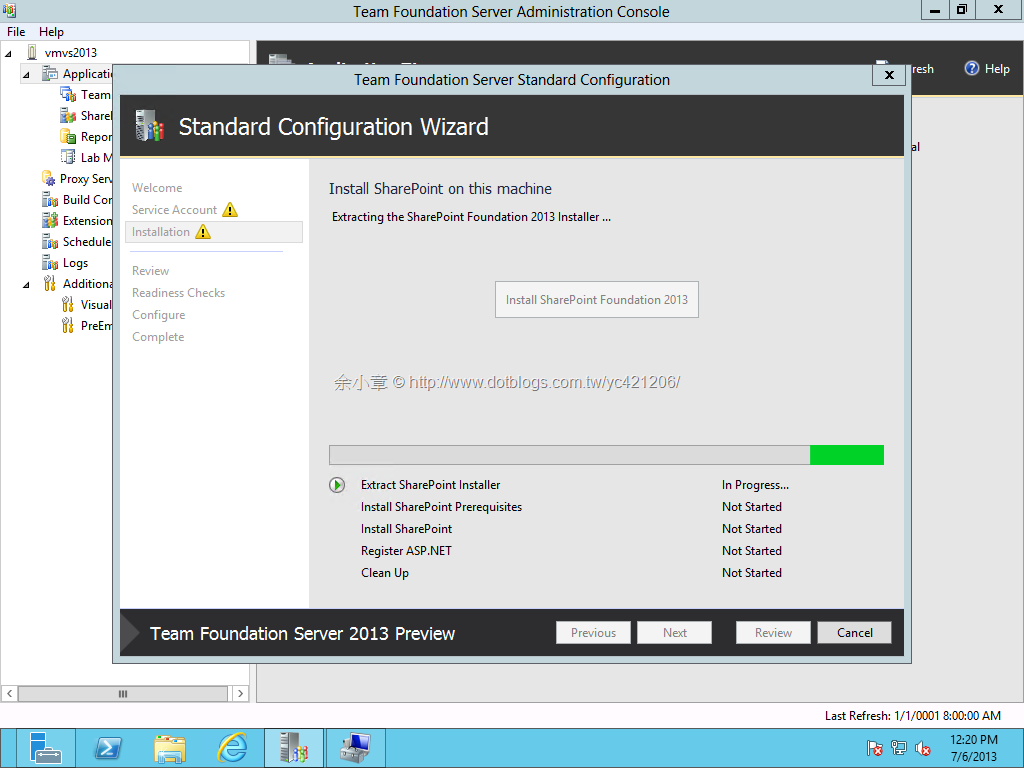
安裝 Sharepoint Foundation 2013
安裝中..
設定 Sharepoint 2013 時會重開個幾次..
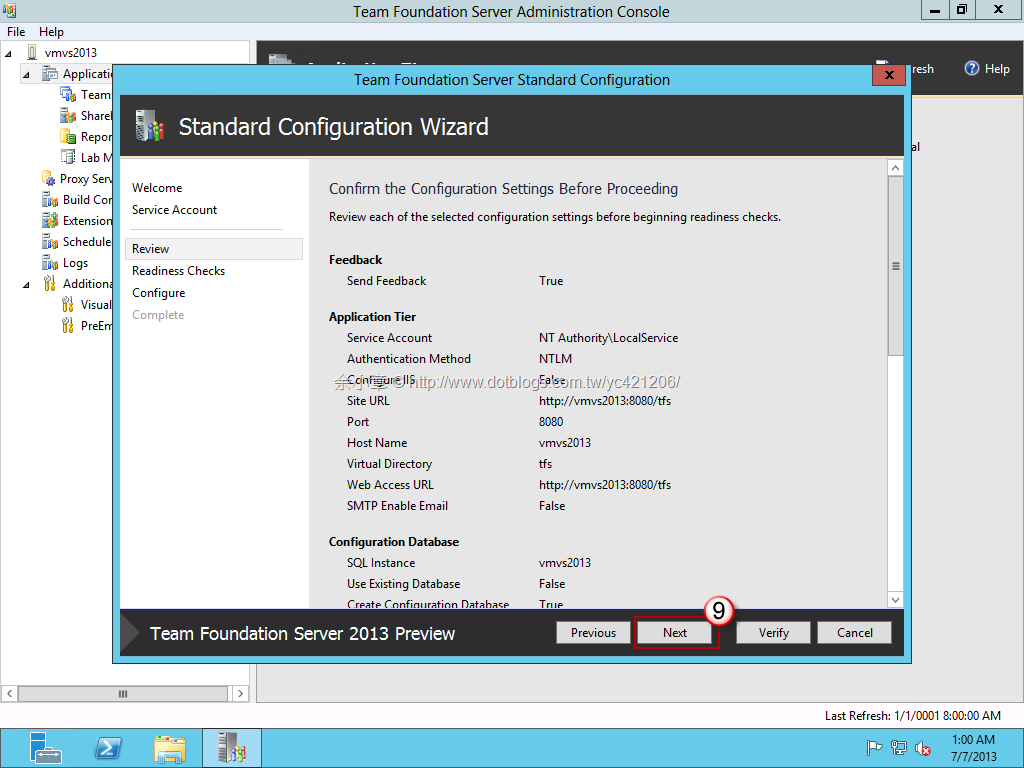
安裝階段到了 Review,仍是按下一步
PS.若在 Service Account 階段發生警告(黃色三角型),請確認登入帳號是否能存取 SQL
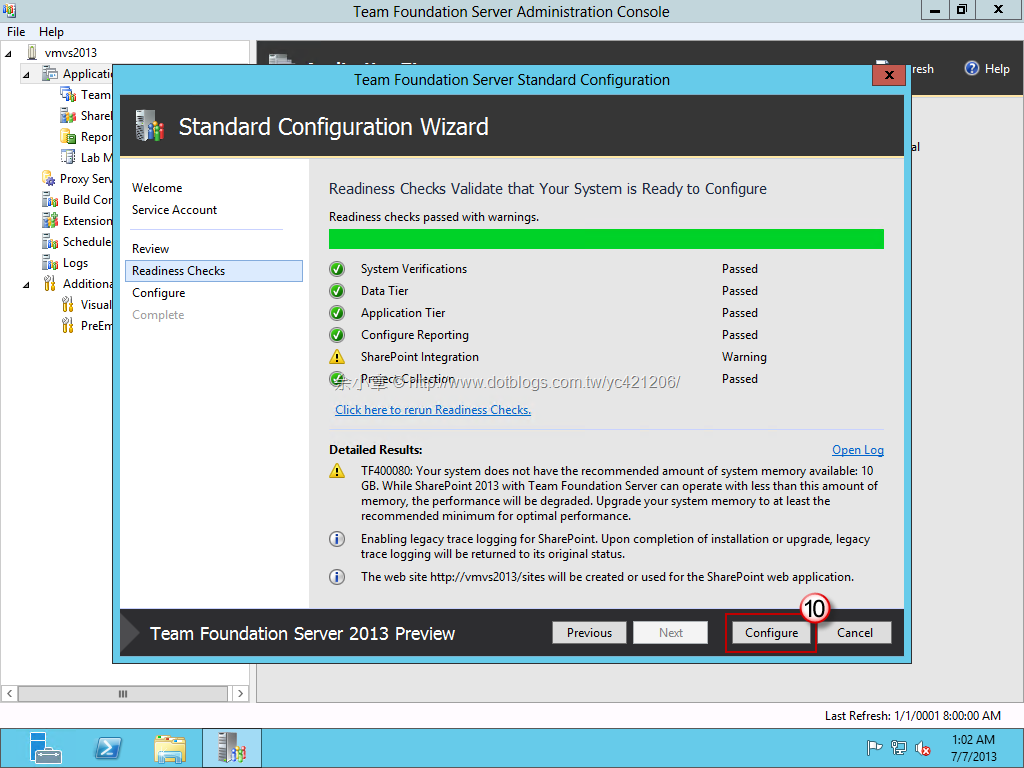
這時會有 Sharepoint 2013 建議要 10G 的訊息出現
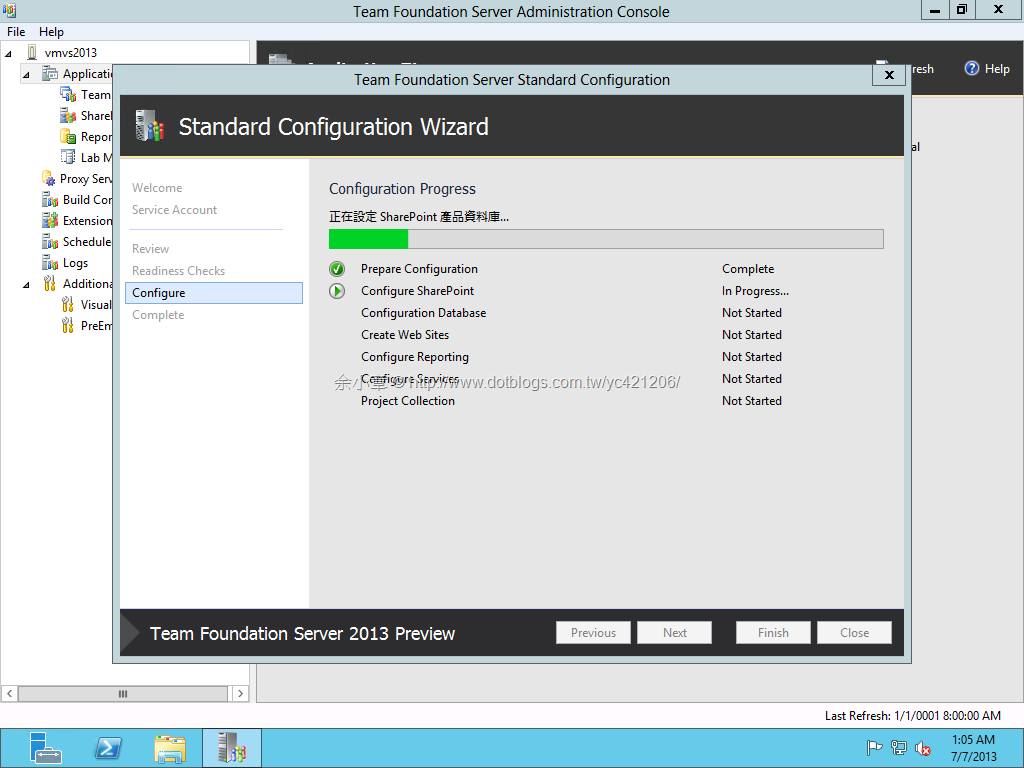
組態設定中…
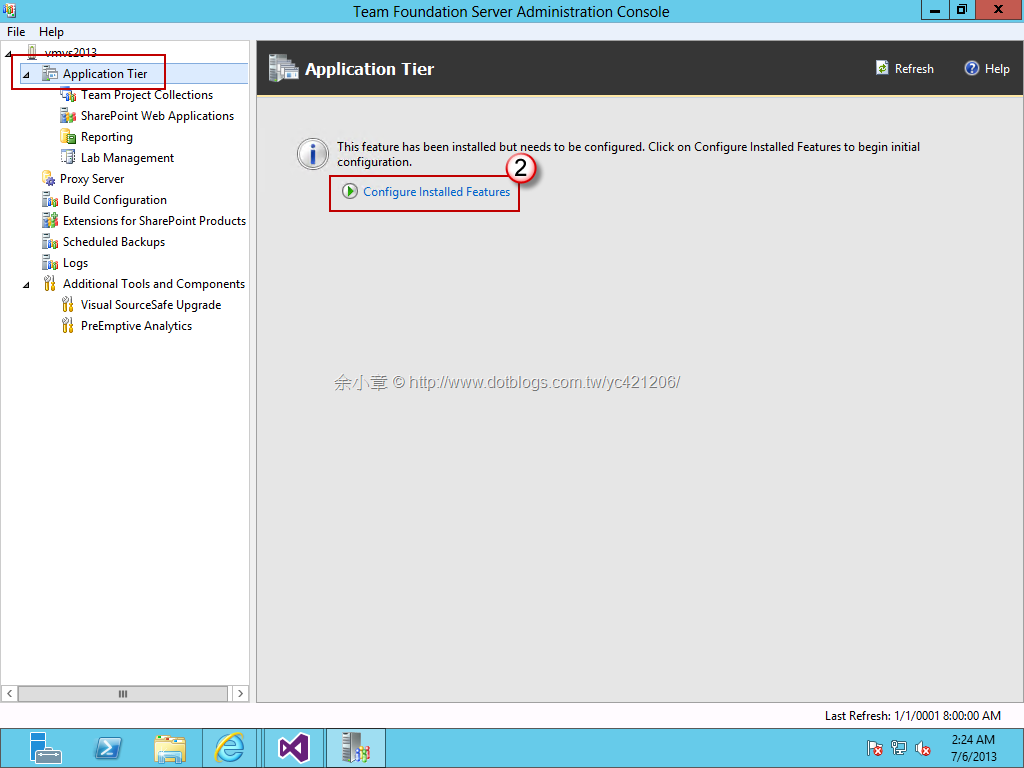
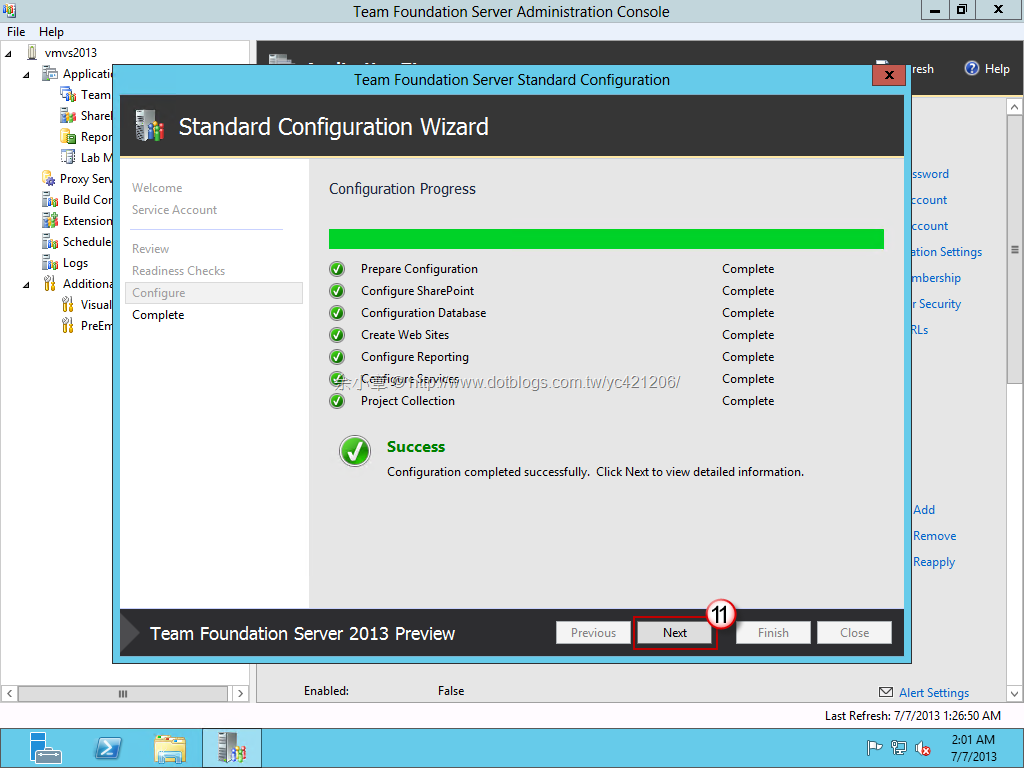
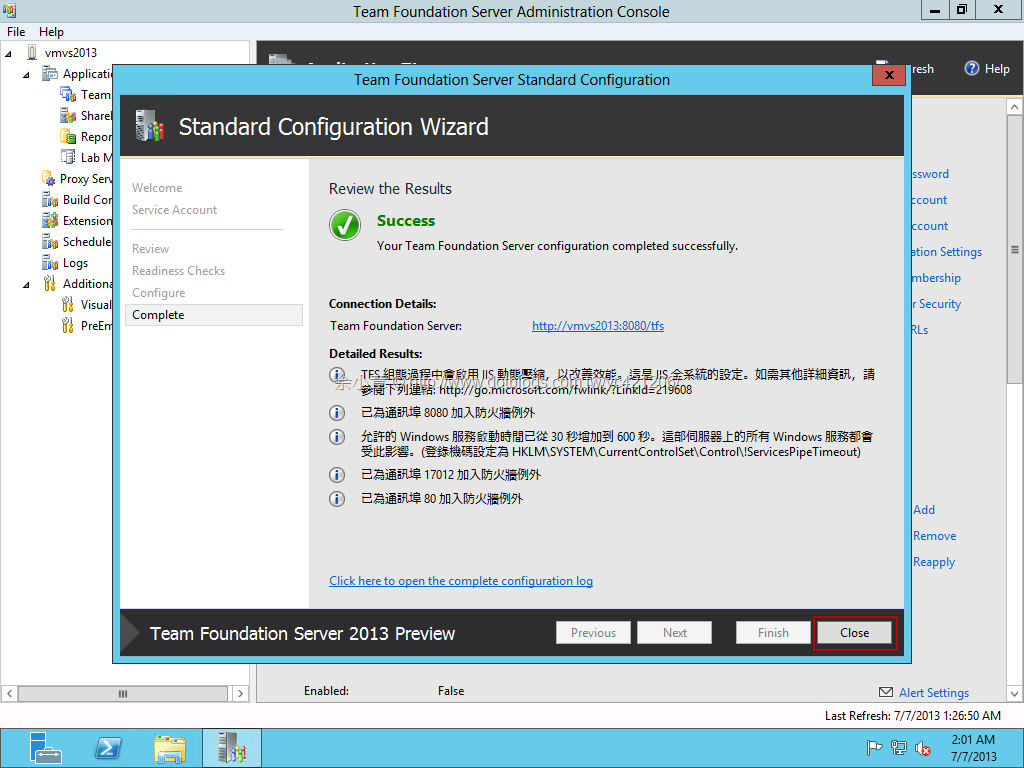
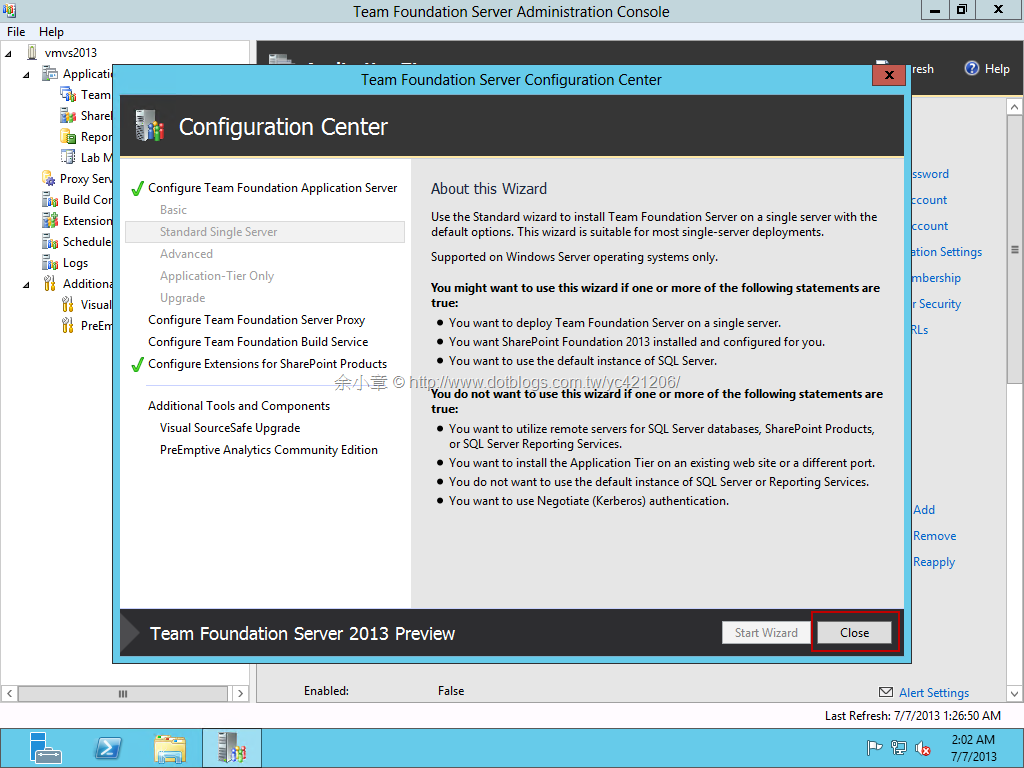
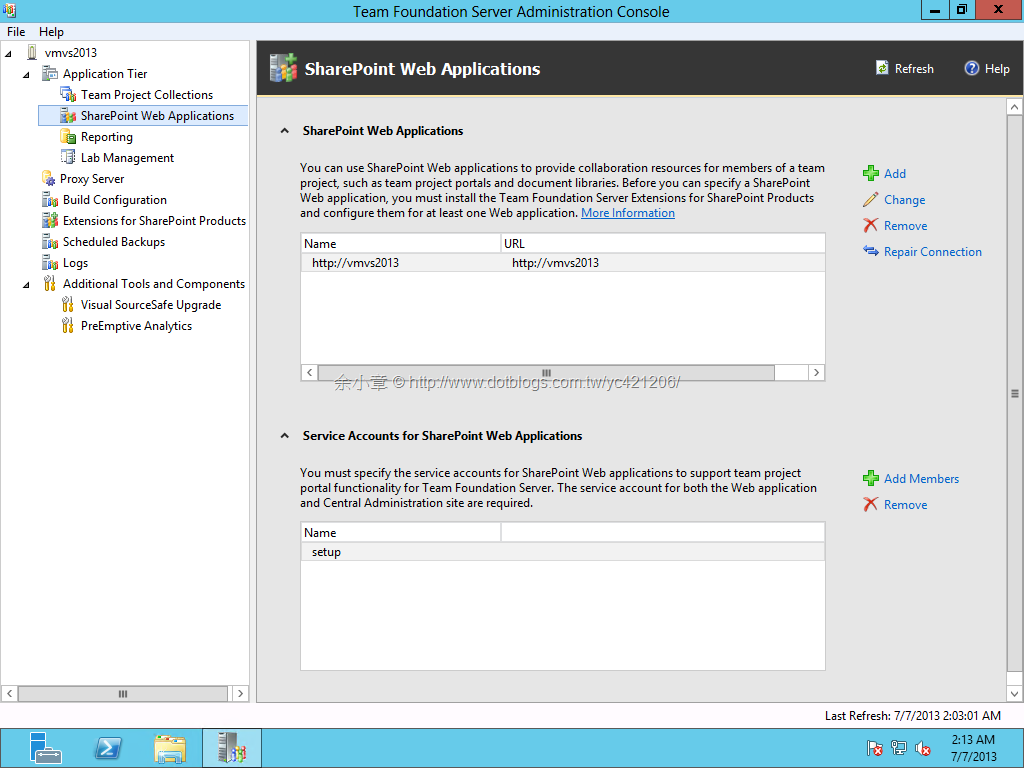
安裝完畢後便可看到管理台,已經有 TFS Service 在運行
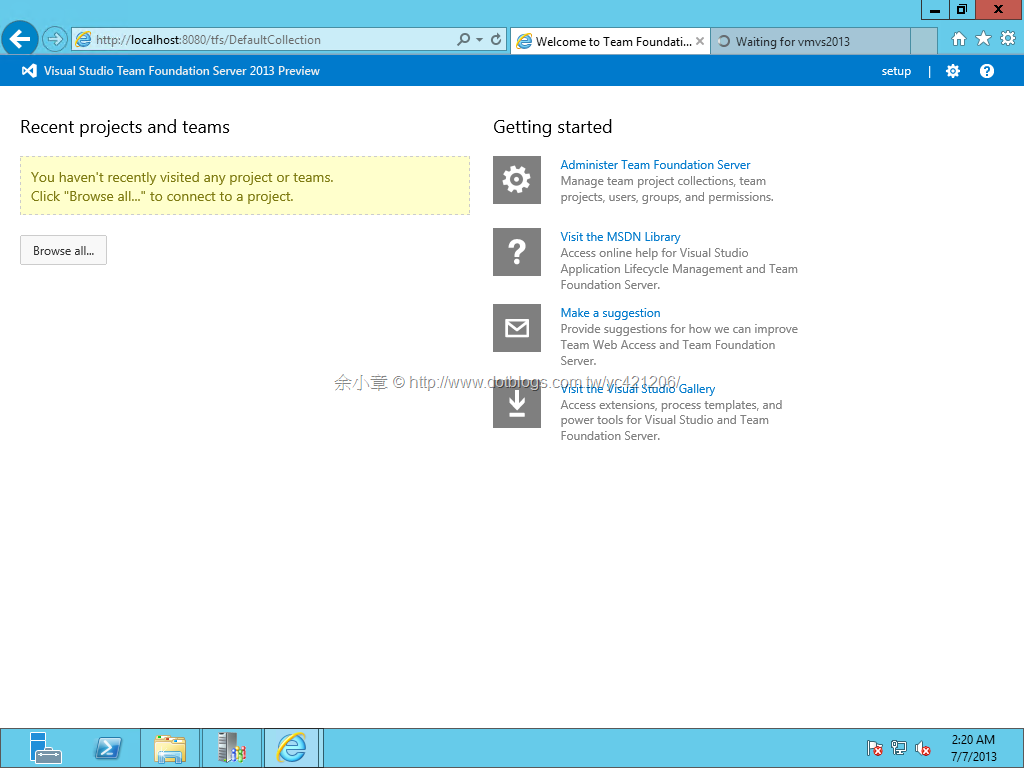
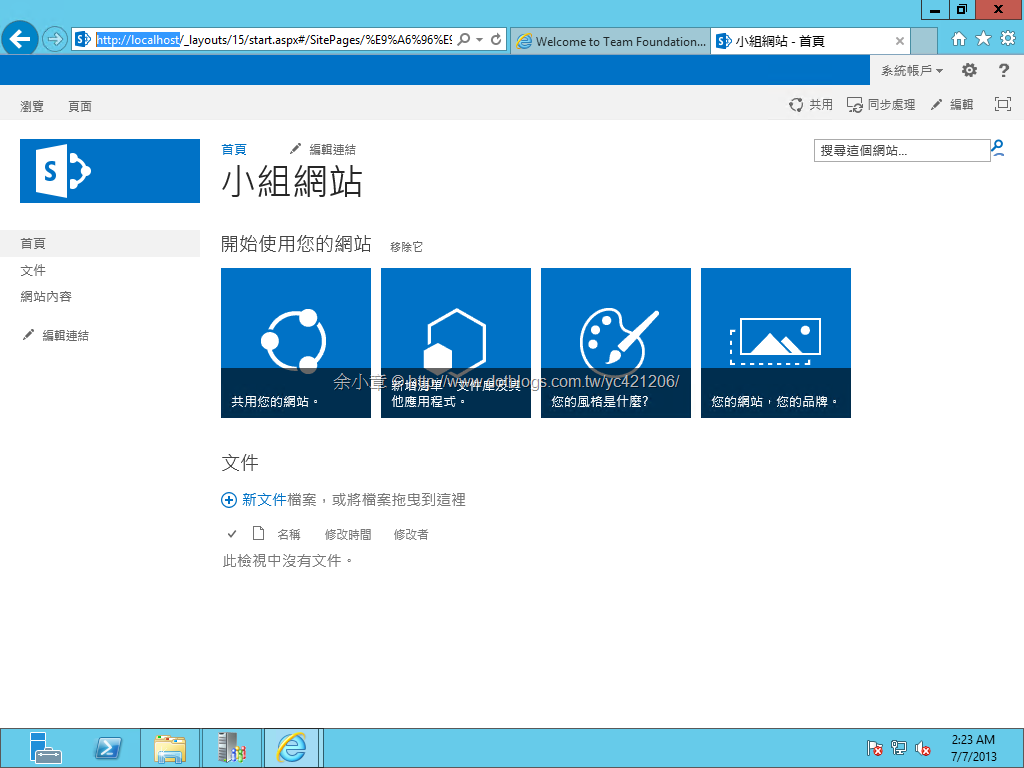
2013/12/13 補充
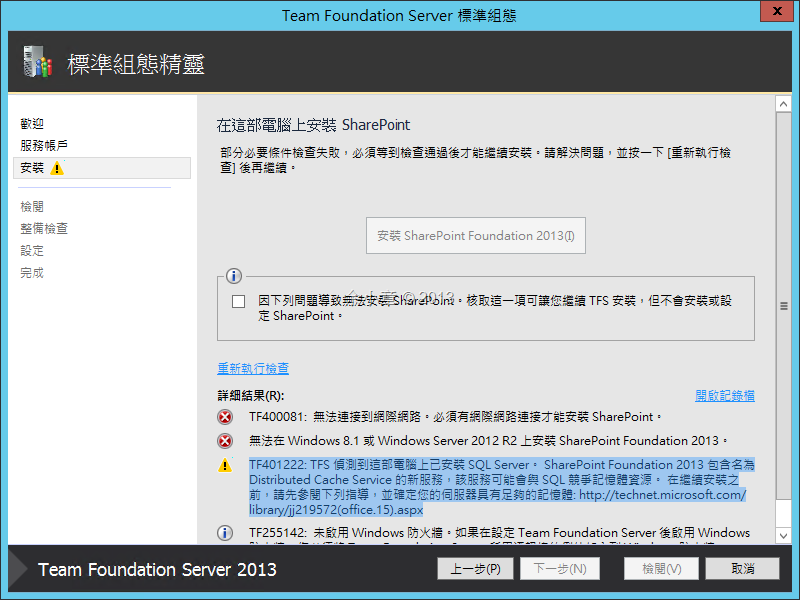
Windows 8.1 或 Windows Server 2012 R2 無法安裝 Sharepoint Foundation 2013
本文出自:http://www.dotblogs.com.tw/yc421206/archive/2013/07/07/107948.aspx
若有謬誤,煩請告知,新手發帖請多包涵

Microsoft MVP Award 2010~2017 C# 第四季
Microsoft MVP Award 2018~2025 .NET
