[Sharepoint 2013] Project Server 2013 Install and Configuration
續上篇 [Sharepoint 2013] 安裝 Sharepoint Server 2013
系統需求:
http://technet.microsoft.com/zh-tw/library/cc197605.aspx
基本軟體需求:
Sharepoint 2013 企業版伺服器陣列
SQL 下列其中一項:
- 64 位元版的 Microsoft SQL Server 2012
- 64 位元版的 SQL Server 2008 R2 Service Pack 1

需要SQL元件:
資料庫引擎
Analysis Services
管理工具
連接元件
必須執行 SQL Server Agent 服務
作業系統 64 位元版:
- Windows Server 2008 R2 Service Pack 1 (SP1) Standard、Enterprise 或 Datacenter,或 Windows Server 2012 Standard 或 Datacenter (已測試 Datacenter 版本)
用戶端需求:
Project Professional 用戶端相容性
Project Professional 2013 安裝需求
Project Professional 2013 透過 Office 365 ProPlus
Project Web App 需求
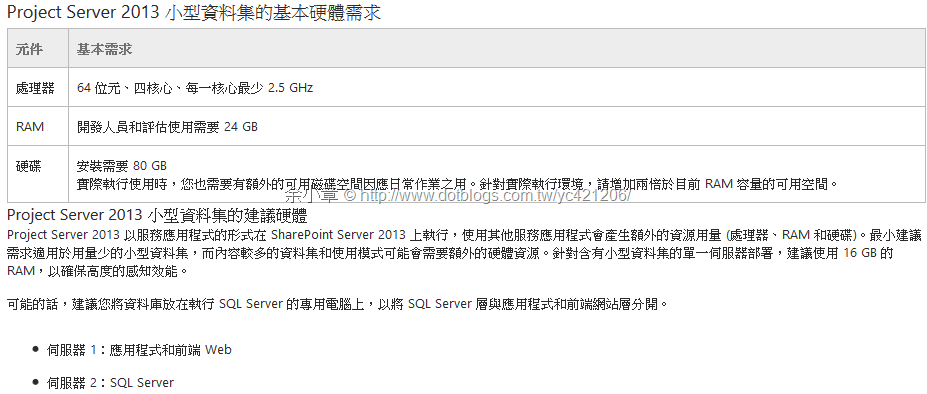
硬體需求:
我的天兒阿~看到這種硬體需求,不吐血也難...
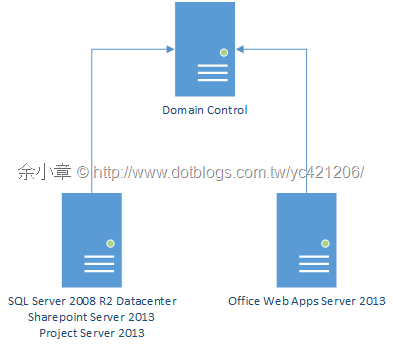
本文安裝架構(沒錢買硬體,全部都裝在同一台機器,跑Hyper-V):
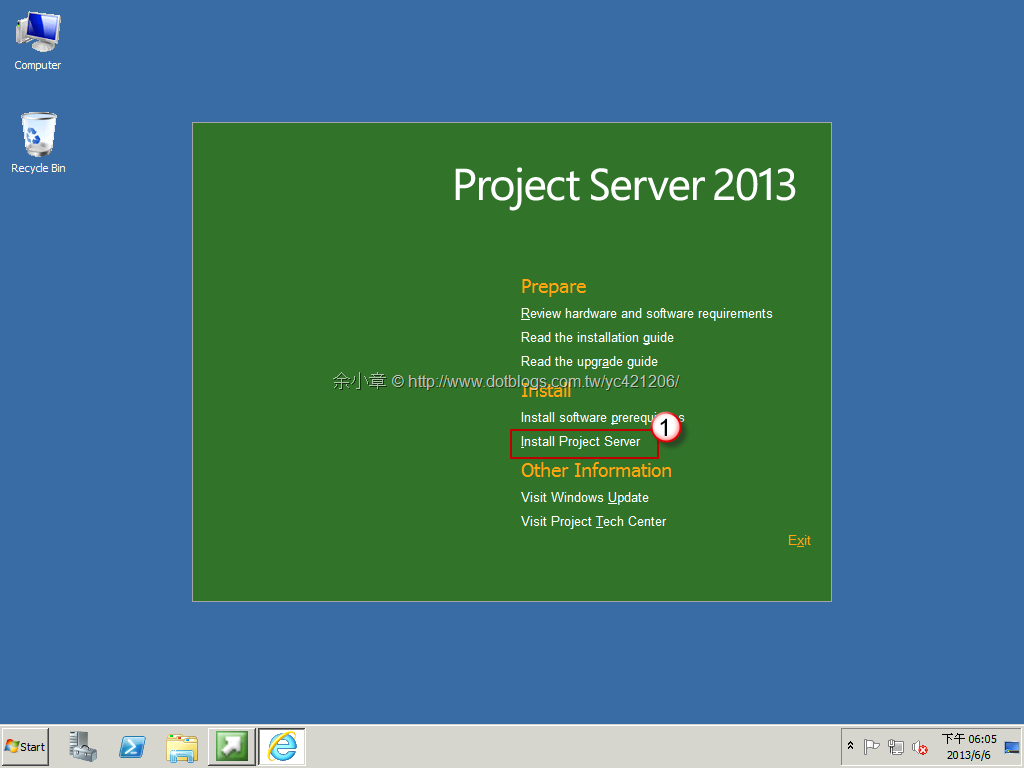
安裝步驟:
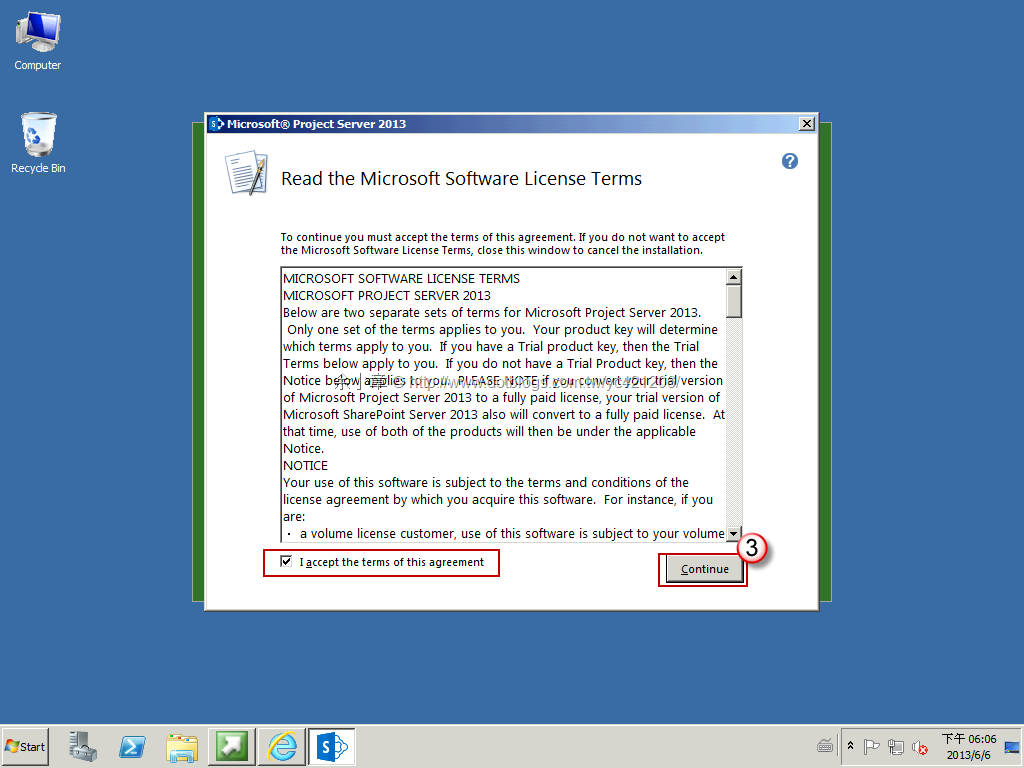
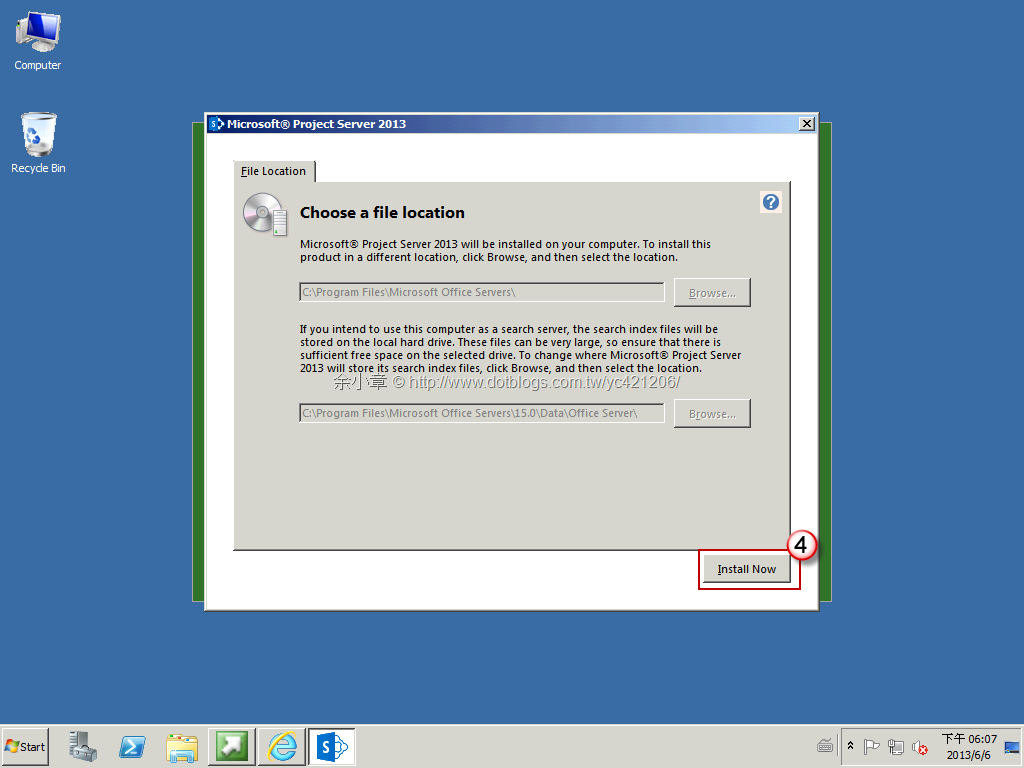
由於我將Project Server 2013跟Sharepoint Server 2013裝在同一台服務,所以就不需要再執行Install software prerequisites
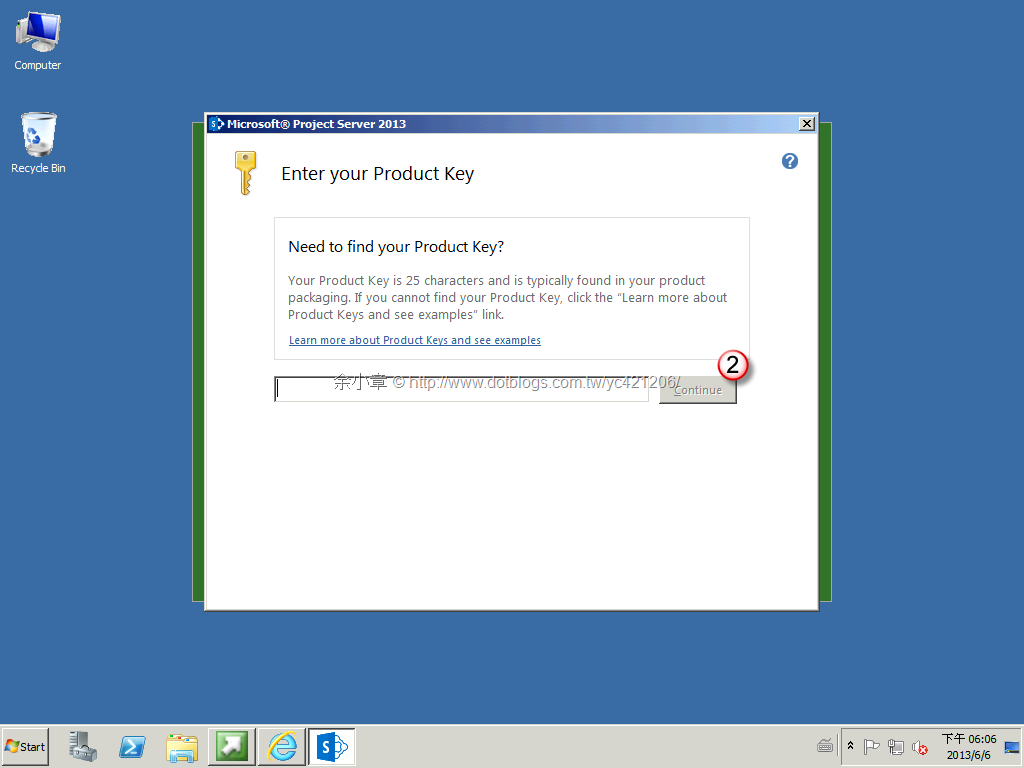
輸入金鑰
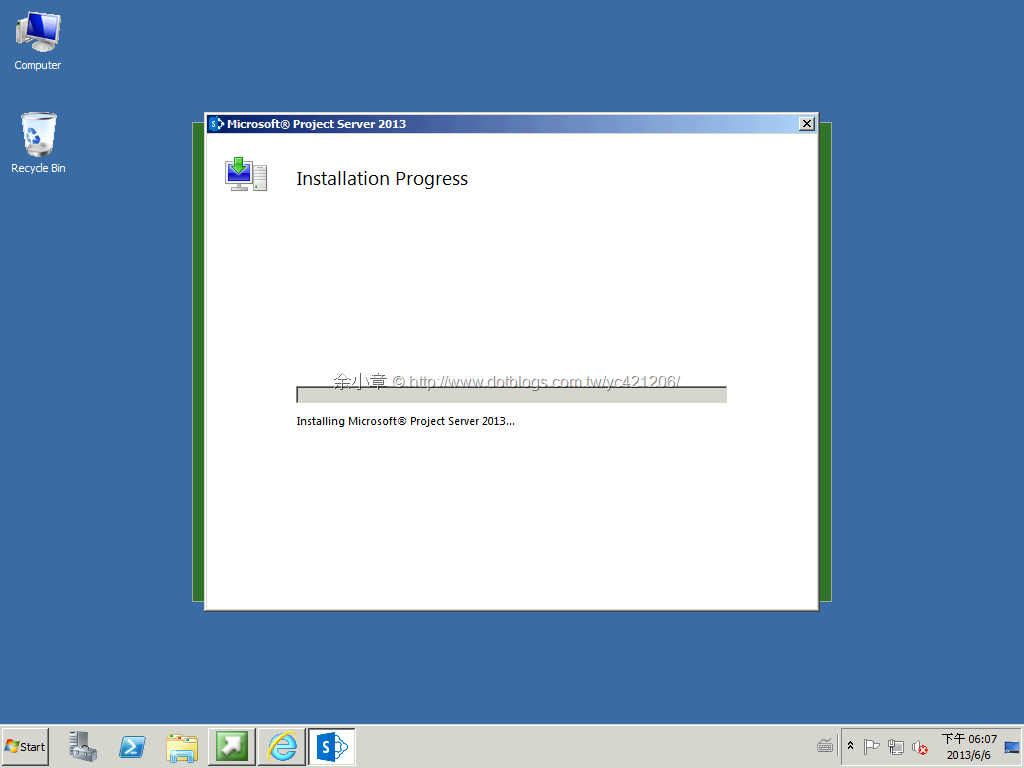
安裝中..
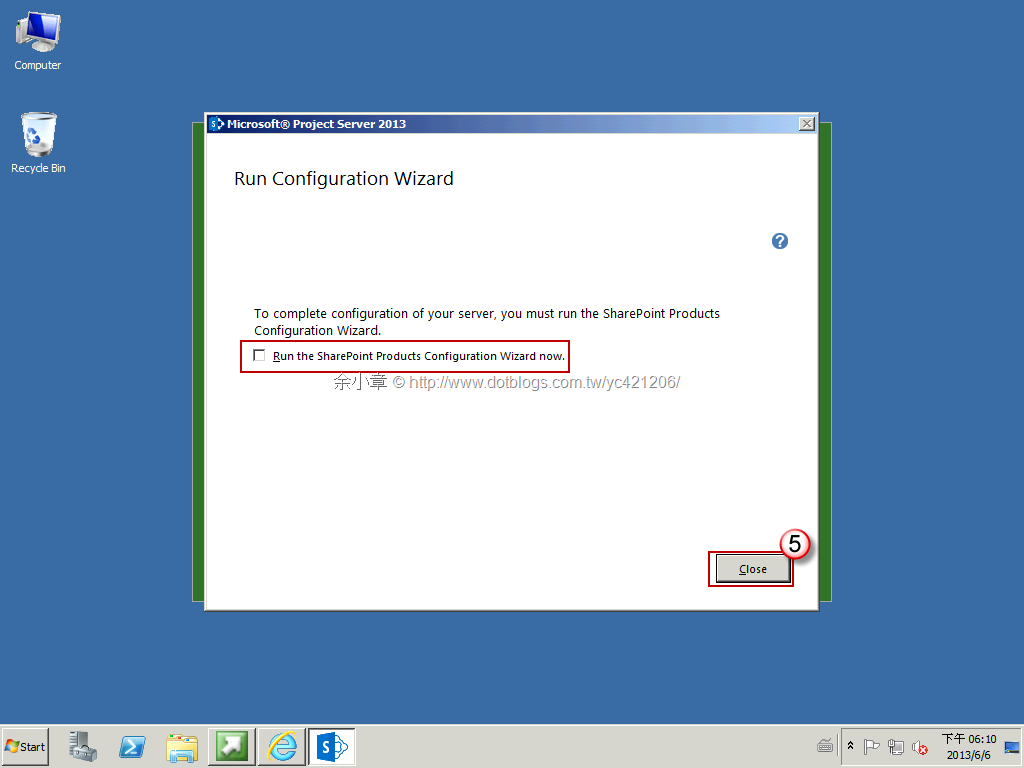
安裝完成,先不要執行設定精
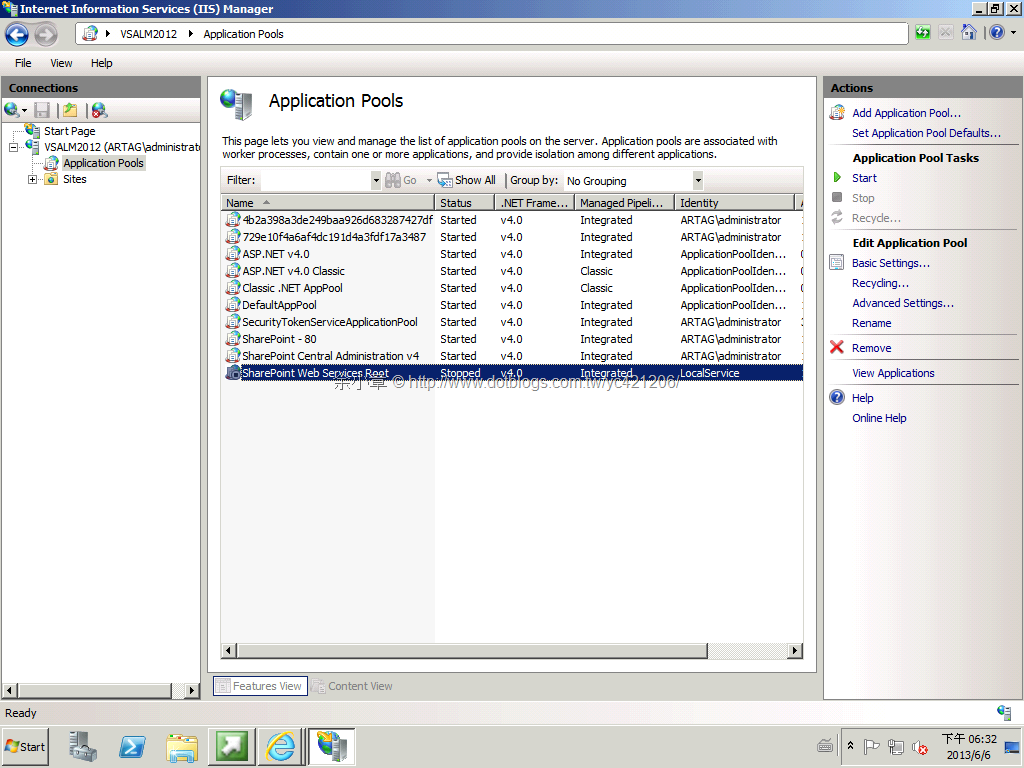
Step2.確認 Sharepoint Web Service Root 服務是否有啟用
安裝完成後,去IIS管理台確認Application Pools 的 Sharepoint Web Service Root 服務是否有啟用,不知為何,每次安裝完 Sharepoint Server 這個服務都會掛點
執行組態精靈
完成精靈設定後,就可以看到 Project Server Application 出現在CA裡面出現。
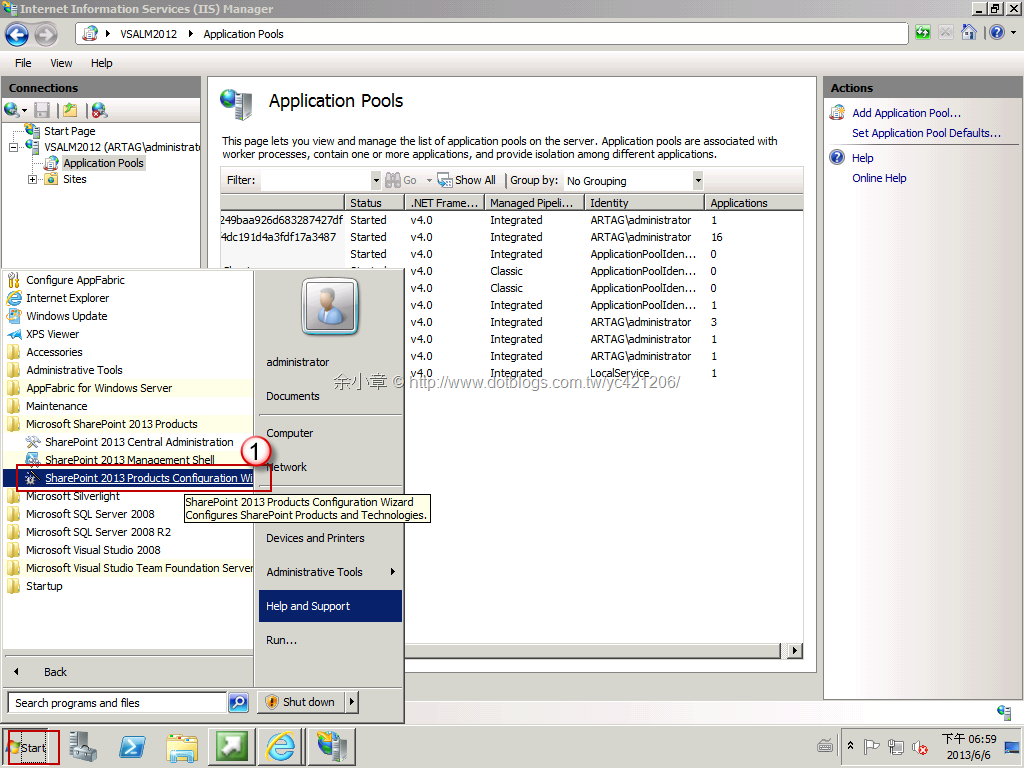
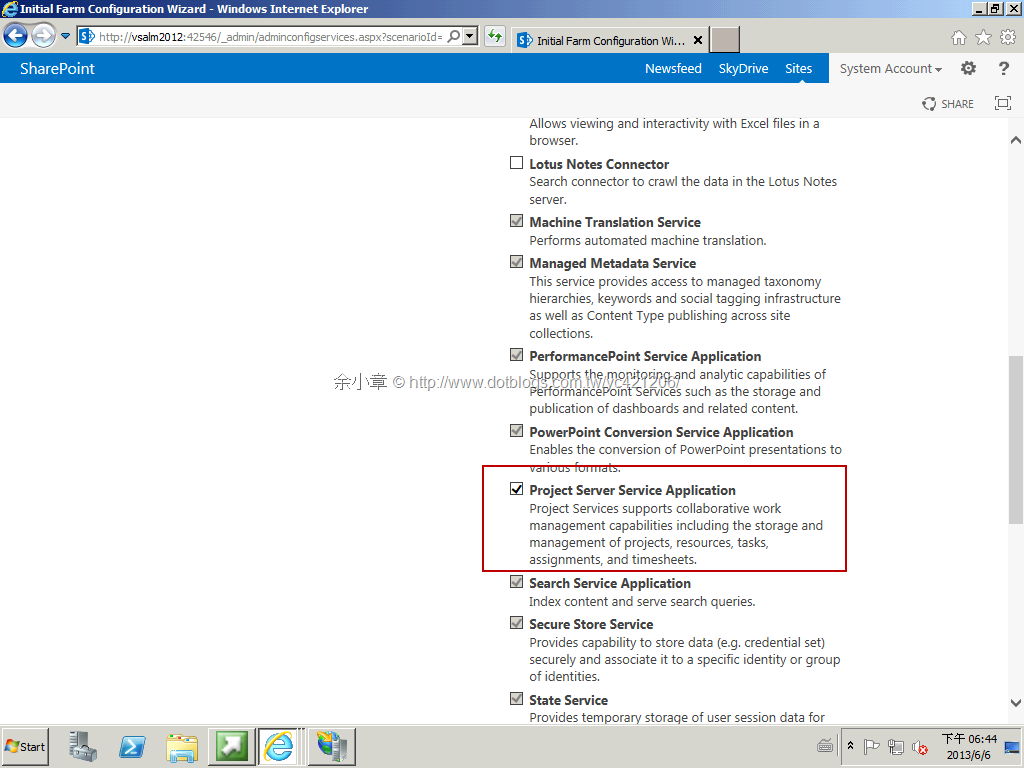
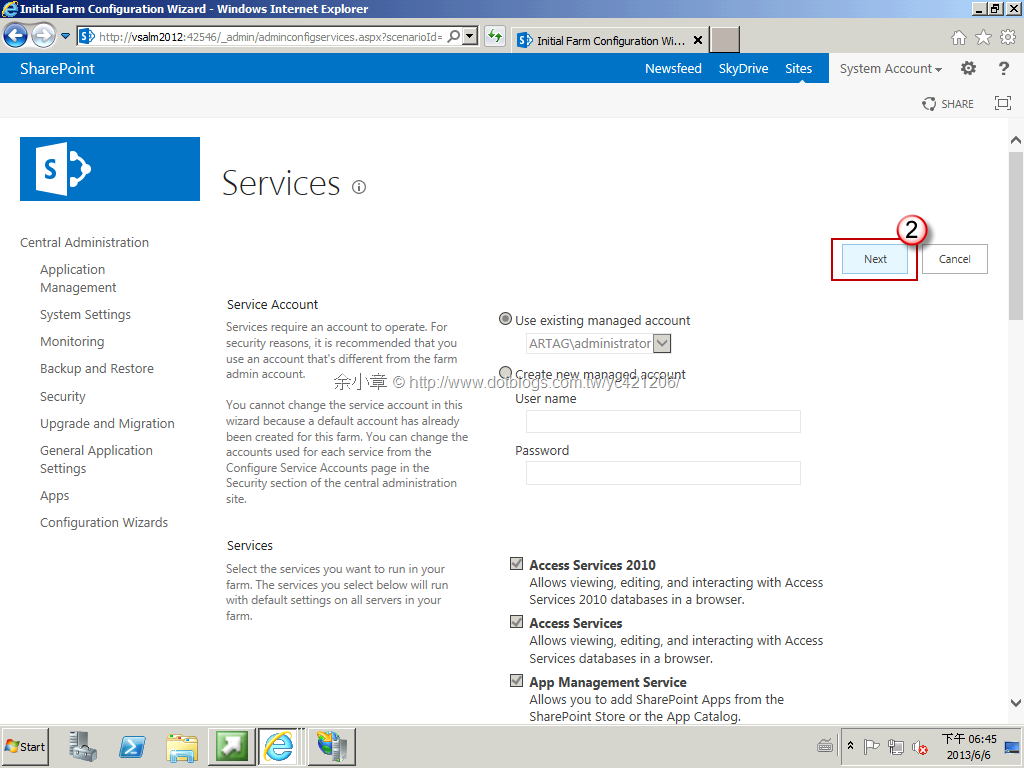
套用設定中
因為已經有頂層網站了所以就不需要建立,當然你也可以再建立
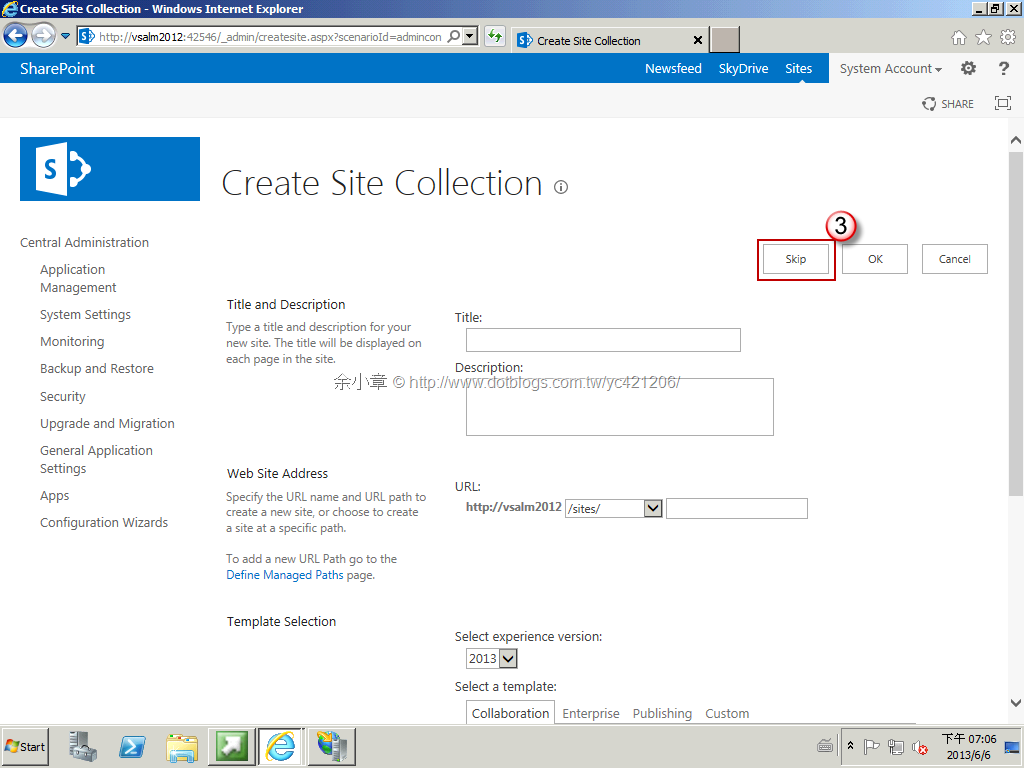
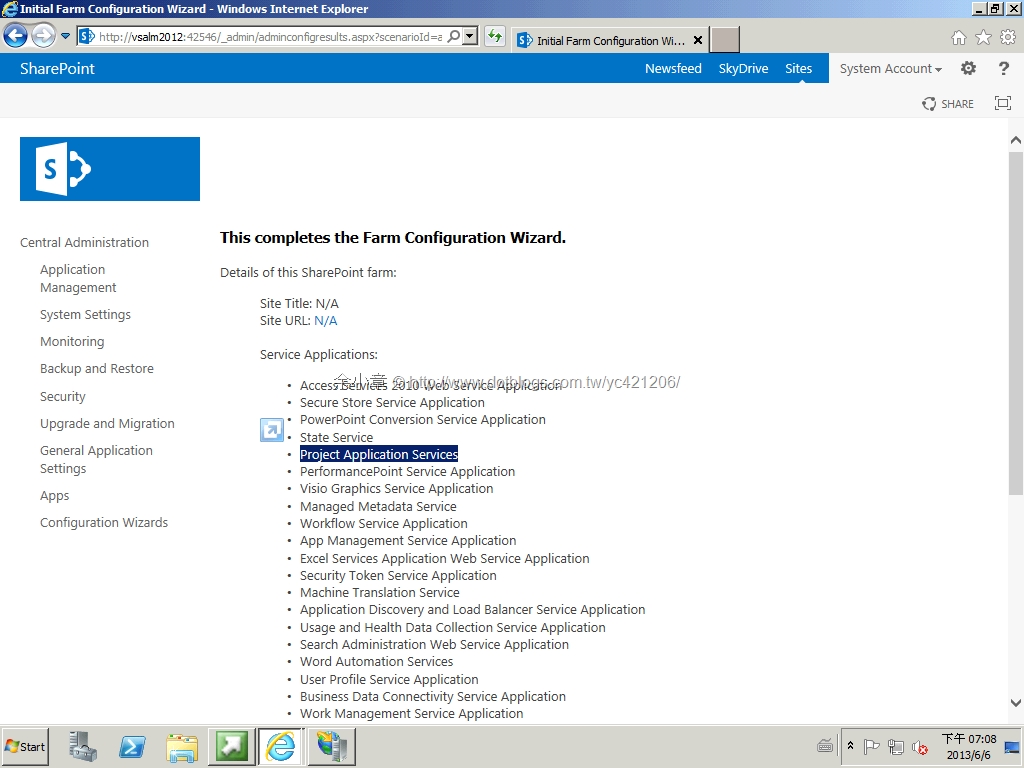
Project Server 2013的服務已經裝載完畢!
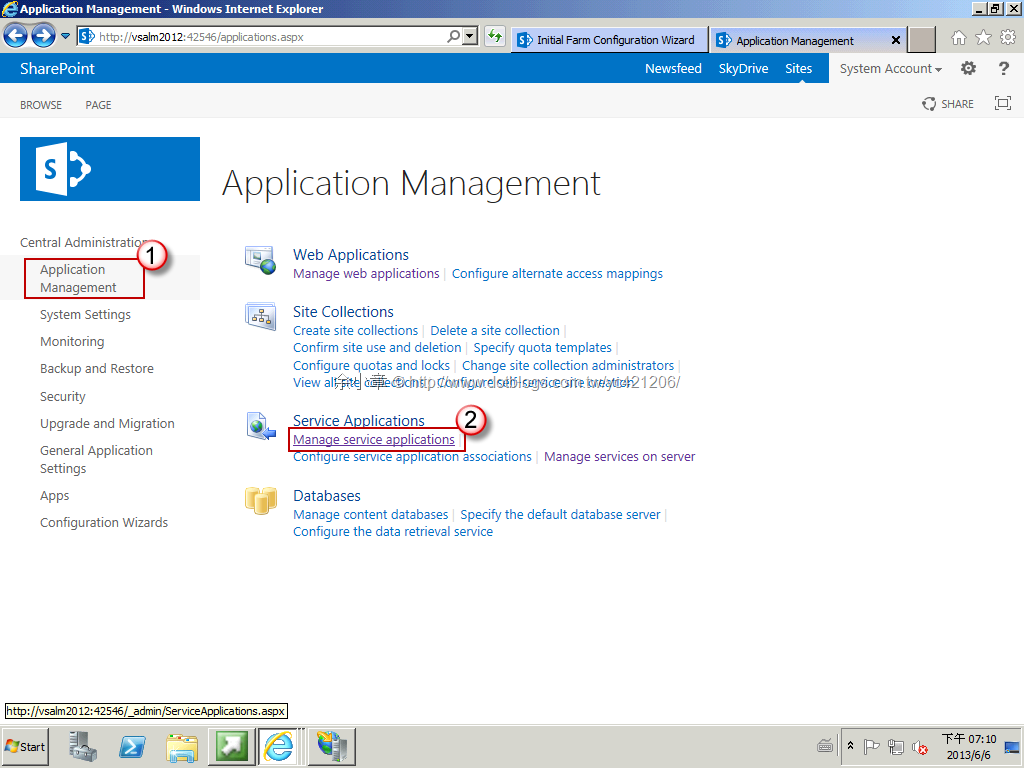
在CA管理台裡
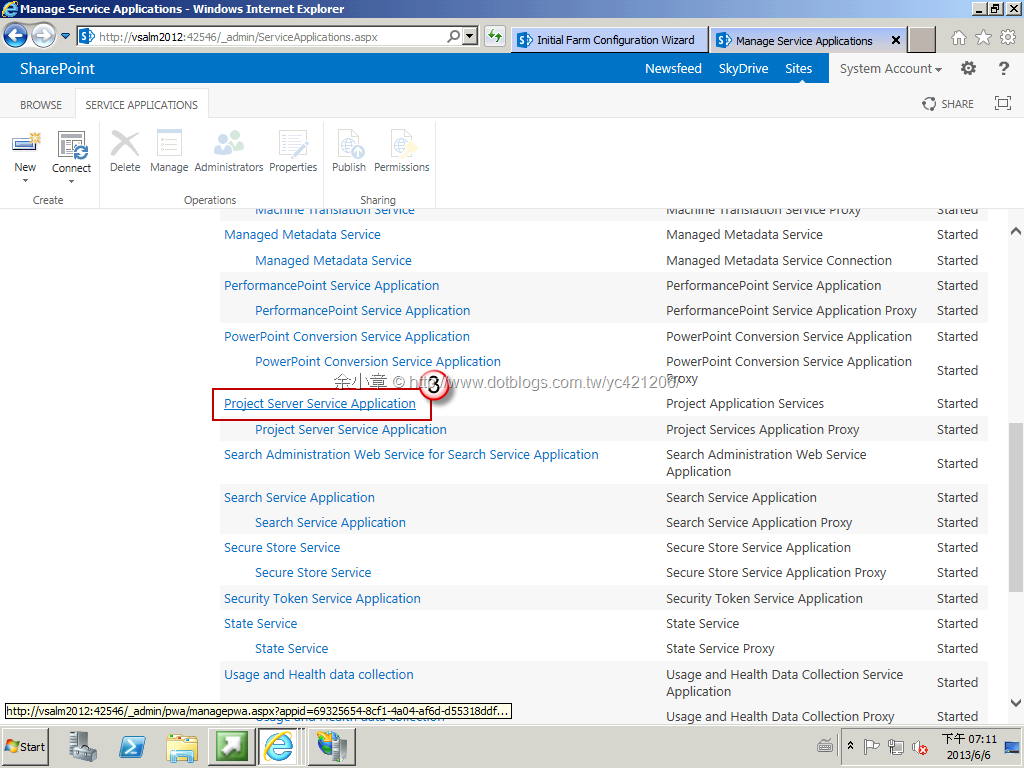
再次提醒,在企業裡不要用 Administrator 當管理帳號
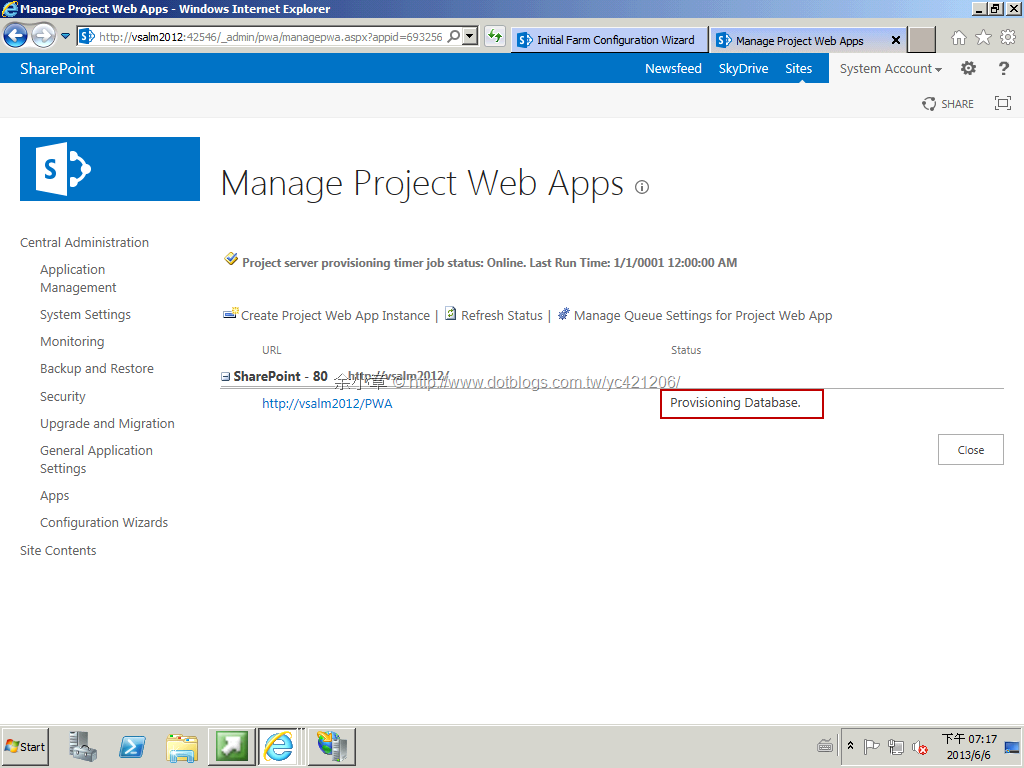
處理中...
完成!!!
PS.若是有錯誤出現,可以回到 Step2.確認 Sharepoint Web Service Root 服務是否有啟用 再做一個確認的動作
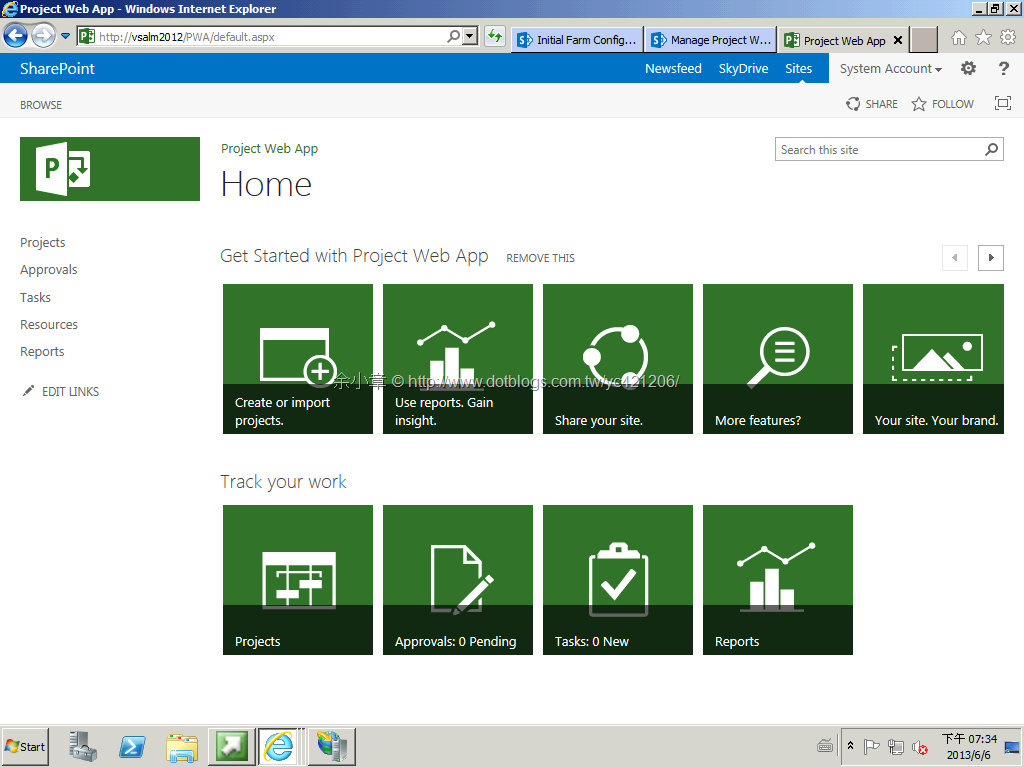
在網址列輸入http://localhost/pwa,就可以看到服務的網頁在執行了。
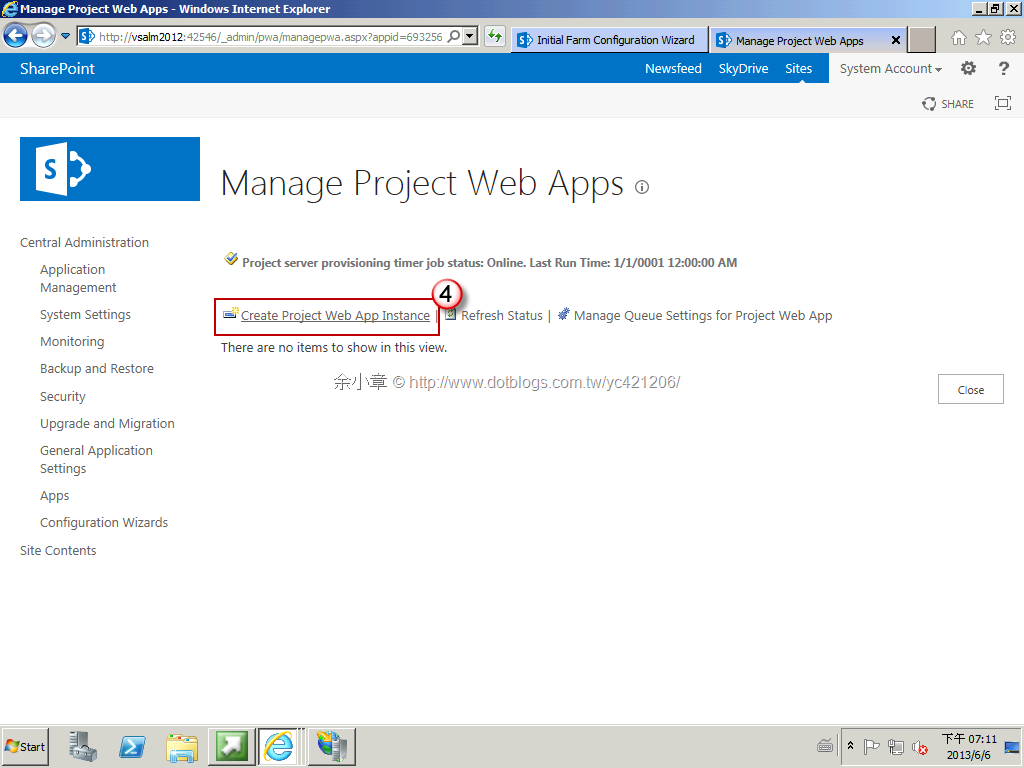
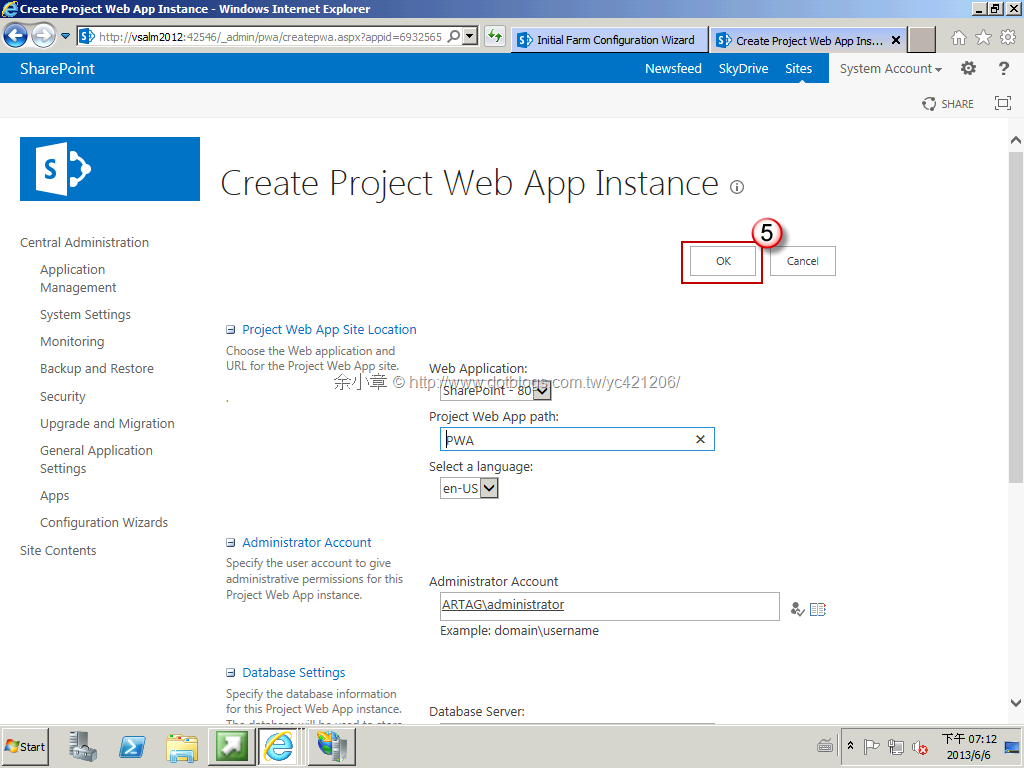
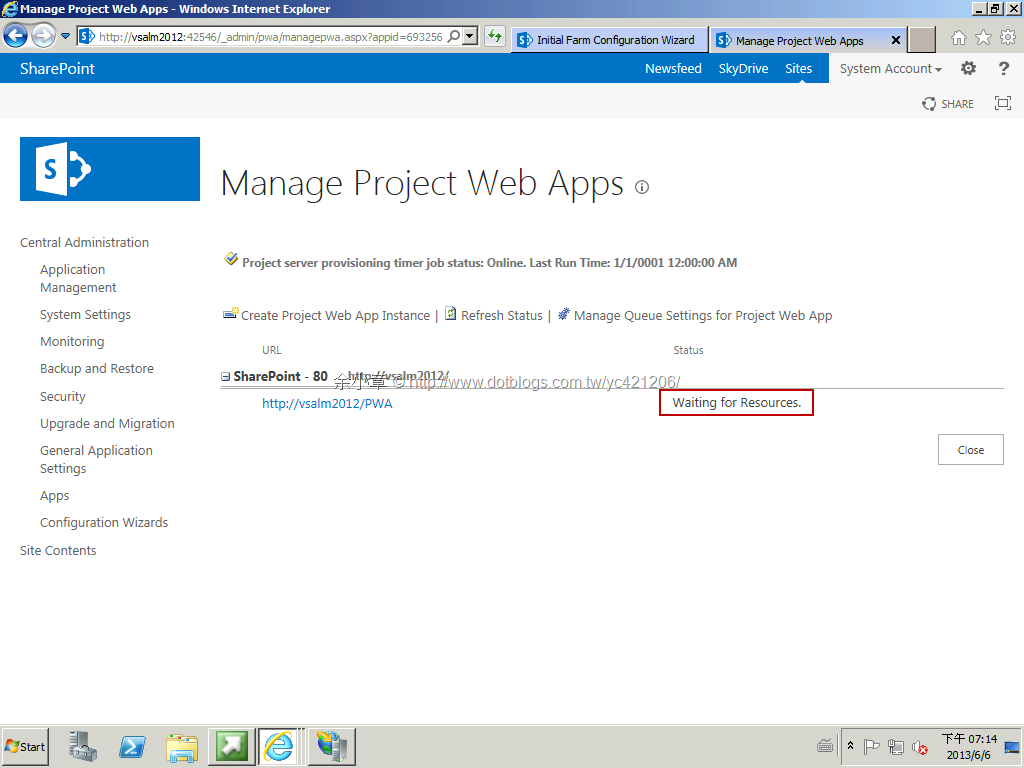
以上文章出自於:http://www.dotblogs.com.tw/yc421206/archive/2013/06/06/105350.aspx
若有謬誤,煩請告知,新手發帖請多包涵

Microsoft MVP Award 2010~2017 C# 第四季
Microsoft MVP Award 2018~2025 .NET
