[ADO.NET][C#.NET] 利用序列化+資料繫結 儲存表單參數
通常一個應用程式可能會有很多的參數設定,我們可能需要將它們存成實體參數檔案,等下次程式再開啟時載入參數檔,然後可以再繼續引用這些參數,在VB6的時代常見到ini的用法,但這樣的用法還是有點不方便,利用.NET的序列化+資料繫結可以更彈性,序列化請參考[.NET] 利用 泛型方法 重構 反序列化
直接看實作比較快,假設我在表單上的產品有以下參數需要設定,我們可以將這些參數規劃成類別(class)或是結構(struct),並設計成屬性 [.NET] 使用 屬性(Property) 的好處
public class Config
{
    public string Axis { get;set; }
    public int Speed { get;set; }
    public int Acceleration { get; set; }
    public int Deceleration { get; set; }
    public int Position { get; set; }
}
然後在客戶端利用BindingSource來處理控制項的資料繫結,當Config.xml不存在時建立新的參數檔,反之則反序列化Config.xml
BindingSource _Source = new BindingSource();
private void Form2_Load(object sender, EventArgs e)
{
    Config config = null;
    if (File.Exists("Config.xml"))
    {
        config = XmlSerialize.DeserializeFromXml<Config>("Config.xml");
    }
    else
    {
        config = new Config();
        config.Axis = "A";
        config.Speed = 100;
        config.Acceleration = 1000;
        config.Deceleration = 2000;
        config.Position = 10000;
    }
    this._Source.DataSource = config;
    this.txtDeceleration.DataBindings.Add("Text", this._Source, "Deceleration");
    this.txtPosition.DataBindings.Add("Text", this._Source, "Position");
    this.txtAxis.DataBindings.Add("Text", this._Source, "Axis");
    this.txtAcceleration.DataBindings.Add("Text", this._Source, "Acceleration");
    this.txtSpeed.DataBindings.Add("Text", this._Source, "Speed");
}
然後利用序列化將參數檔存下來,用法請參考[.NET] 利用 泛型方法 重構 反序列化
private void button1_Click(object sender, EventArgs e)
{
    Config config = this._Source.DataSource as Config;
    if (config == null)
        return;
    XmlSerialize.SerializeToXml("Config.xml", config);
}
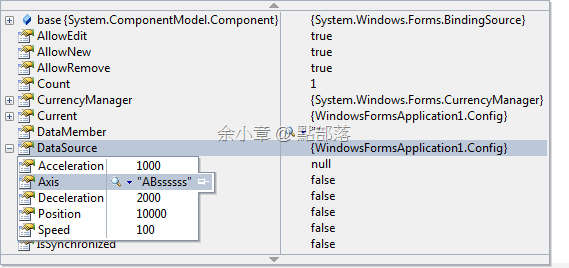
當畫面執行後,只要隨便在畫面上的控制項變更資料,然後在存檔按紐設下中斷,我們來觀察一下This._Source(BindingSource)變數有什麼變化
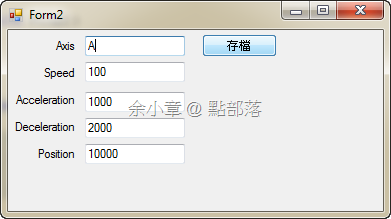
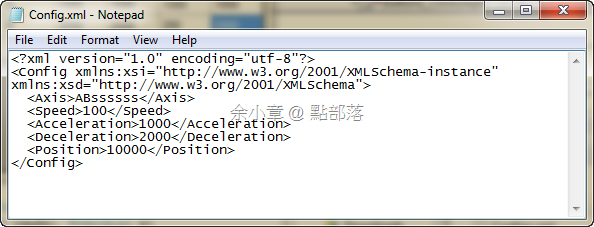
參數檔如下:
我在Axis欄位隨便輸入的值,也馬上同步到This._Source(BindingSource)裡了
當然,按下存檔下序列化的結果當然是將class存成實體檔案囉,下次程式再開啟時就會直接載入了
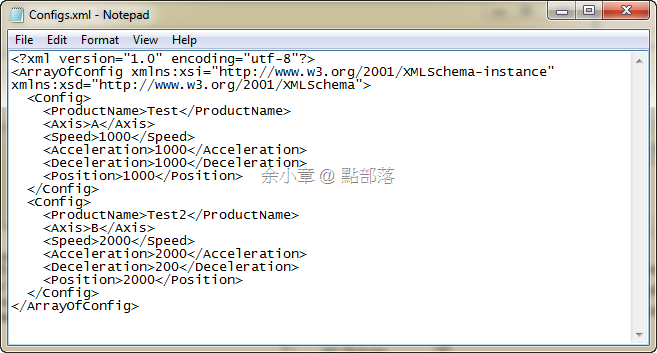
如果設定檔有多筆也無需擔心,我再類別加個ProductName來分類一下。
public class Config
{
    public string ProductName { get; set; }
    public string Axis { get; set; }
    public int Speed { get;set; }
    public int Acceleration { get; set; }
    public int Deceleration { get; set; }
    public int Position { get; set; }
}
多筆資料我用BindingList<Config>來解決,並繫結到相關控制項,換湯不換藥。
private void button1_Click(object sender, EventArgs e)
{
    BindingList<Config> configs = this._Source.DataSource as BindingList<Config>;
    if (configs == null)
        return;
    XmlSerialize.SerializeToXml("Configs.xml", configs);
}

BindingSource _Source = new BindingSource();
private void Form2_Load(object sender, EventArgs e)
{
    BindingList<Config> configs = null;
    if (File.Exists("Configs.xml"))
    {
        configs = XmlSerialize.DeserializeFromXml<BindingList<Config>>("Configs.xml");
    }
    else
    {
        configs = new BindingList<Config>();
        configs.Add(new Config() { ProductName = "Test", Axis = "A", Acceleration = 1000, Deceleration = 1000, Speed = 1000, Position = 1000 });
    }
    this._Source.DataSource = configs;
    this.bindingNavigator1.BindingSource = this._Source;
    this.dataGridView1.DataSource = this._Source;

    this.comboBox1.DataSource = this._Source;
    this.comboBox1.DisplayMember = "ProductName";

    this.txtDeceleration.DataBindings.Add("Text", this._Source, "Deceleration");
    this.txtPosition.DataBindings.Add("Text", this._Source, "Position");
    this.txtAxis.DataBindings.Add("Text", this._Source, "Axis");
    this.txtAcceleration.DataBindings.Add("Text", this._Source, "Acceleration");
    this.txtSpeed.DataBindings.Add("Text", this._Source, "Speed");
}
只要任一控制項作動,都會牽扯到資料來源This._Source,真的很有趣。
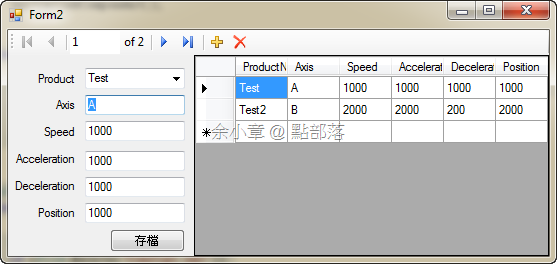
產生出來的設定檔
若有謬誤,煩請告知,新手發帖請多包涵

Microsoft MVP Award 2010~2017 C# 第四季
Microsoft MVP Award 2018~2025 .NET
