文章內容僅為個人實驗測試紀錄,不建議使用在生產環境。
短期內有效,未來可能因相關的設計改變,如:API 調整 而失效,請斟酌。
適用的 Claude 產品有:
1. Claude Code (CLI)
2. Visual Studio Code 的 Claude Code extension
以上注意事項請知悉。
本文章提到 Visual Studio Code 的 Claude Code extension 使用時,會稱之為 VS Code with Claude。
使用的需求情境是如此:
已有訂閱 GitHub Copilot 的服務,但又不想多另外再訂閱 Claude 服務(畢竟 GitHub Copilot 當中就可以使用 Opus、Sonnet…等各家 LLM 模型)。

經過研究一番,可以運用的方式有不少,但都會有比較多的其他考量的地方,都不是算太好的解法。
最後找到這篇在 GitHub 的 gist 介紹:
透過 copilot-api 和 claude-code-router,將您的 GitHub Copilot Business 訂閱變成 Claude Code 的強大後端
看到這篇的介紹就似乎有點眉頭了。
根據該篇 gist 的介紹,也找到 copilot-api 的 Repo 研究了一下。
該 Repo 的作者也有明說,這不是官方(指 Claude 與 GitHub Copilot) 的推薦作法,充其量只能算是一個實驗性的專案。
雖然此專案後續也沒有持續維護了,所以還是測試跑看看,會發現 OpenAI 新式 "Responses API" 的 api 格式都不適用了,所以在該 Repo 的 issues 當中看到了 copilot-bridge 的 Repo。
copilot-bridge 的作者則基本上是接續 copilot-api 的架構繼續發展下去,並能串接到 OpenAI 新式 "Responses API" 的 api 格式。
而且在該 Repo 當中的 Readme 有提到 "Why this bridge",有興趣的可以看看。
好,那該怎用呢?
在 Windows 中若已經有裝好 npm 的話,就直接透過下列的 npm 指令即可:
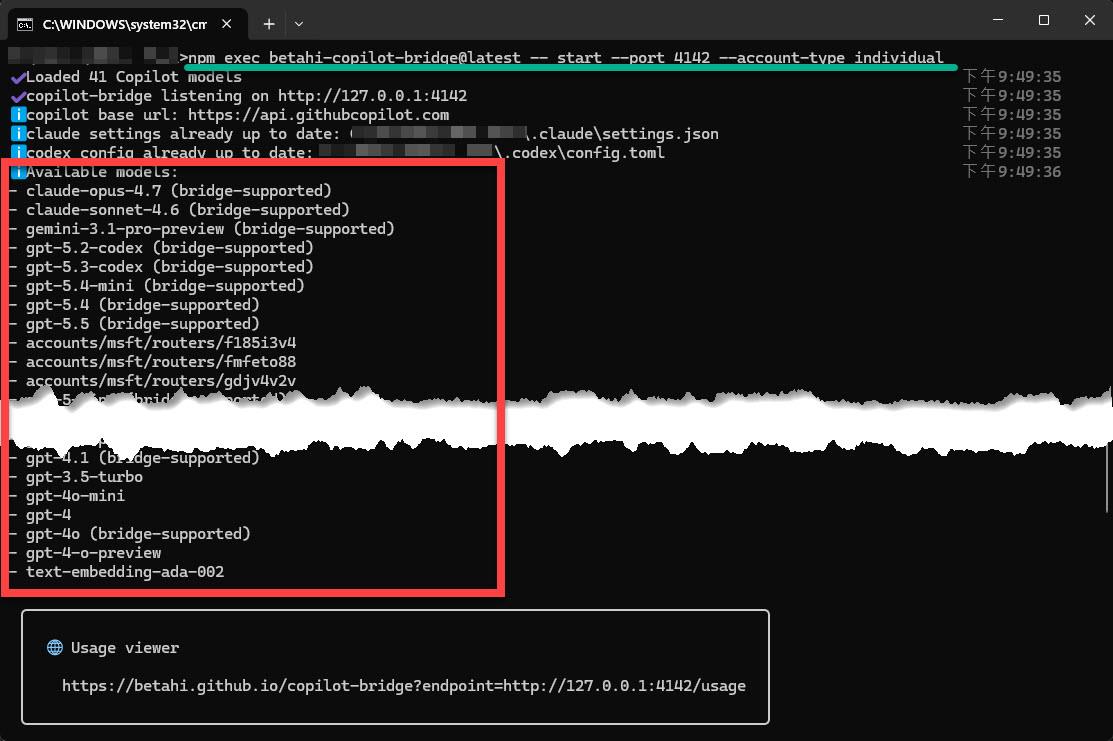
npm exec betahi-copilot-bridge@latest -- start --port 4142 --account-type individual
其中 --account-type 參數可用的設定有三種:
- individual: GitHub Copilot 的訂閱是 student、pro、pro+ 的用戶。
- business: GitHub Copilot 的訂閱是 business 的用戶。
- enterprise: GitHub Copilot 的訂閱是 enterprise 的用戶。
注意:
第一次會需要經過 GitHub 的 Device 授權驗證。
執行後會看到幾個注意事項ℹ️,其中 Available models 會列出目前支援的 41 種 models:
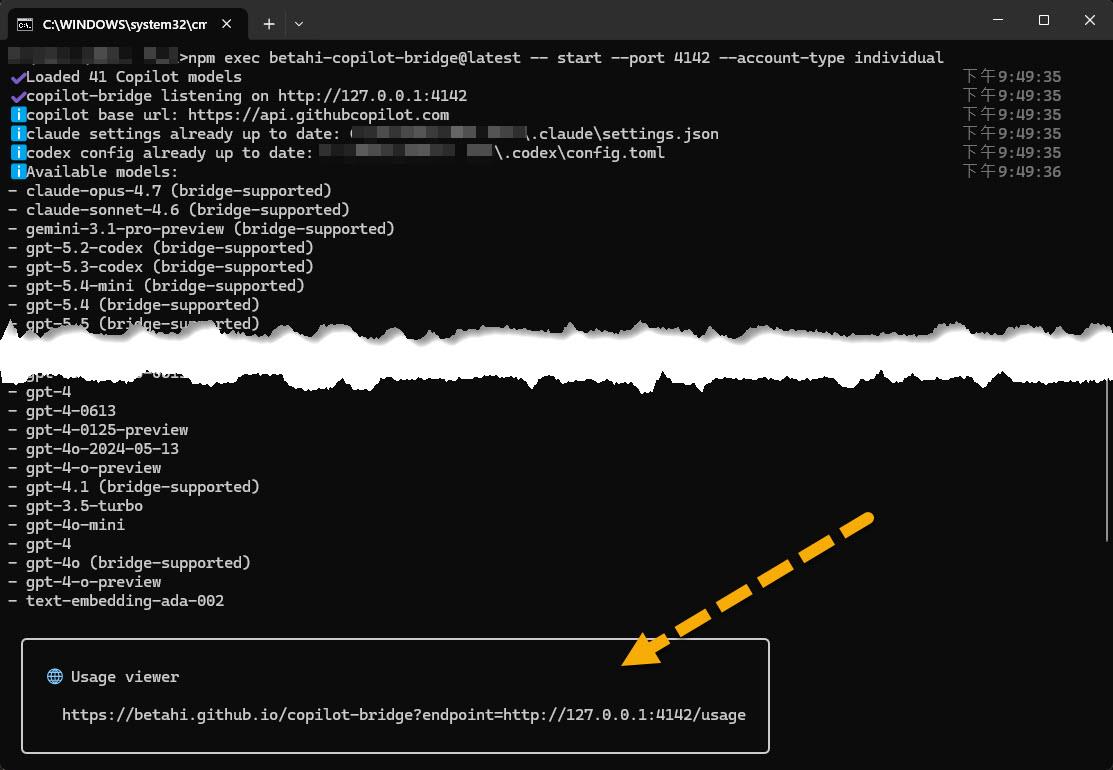
透過 Usage Viewer 的網址:
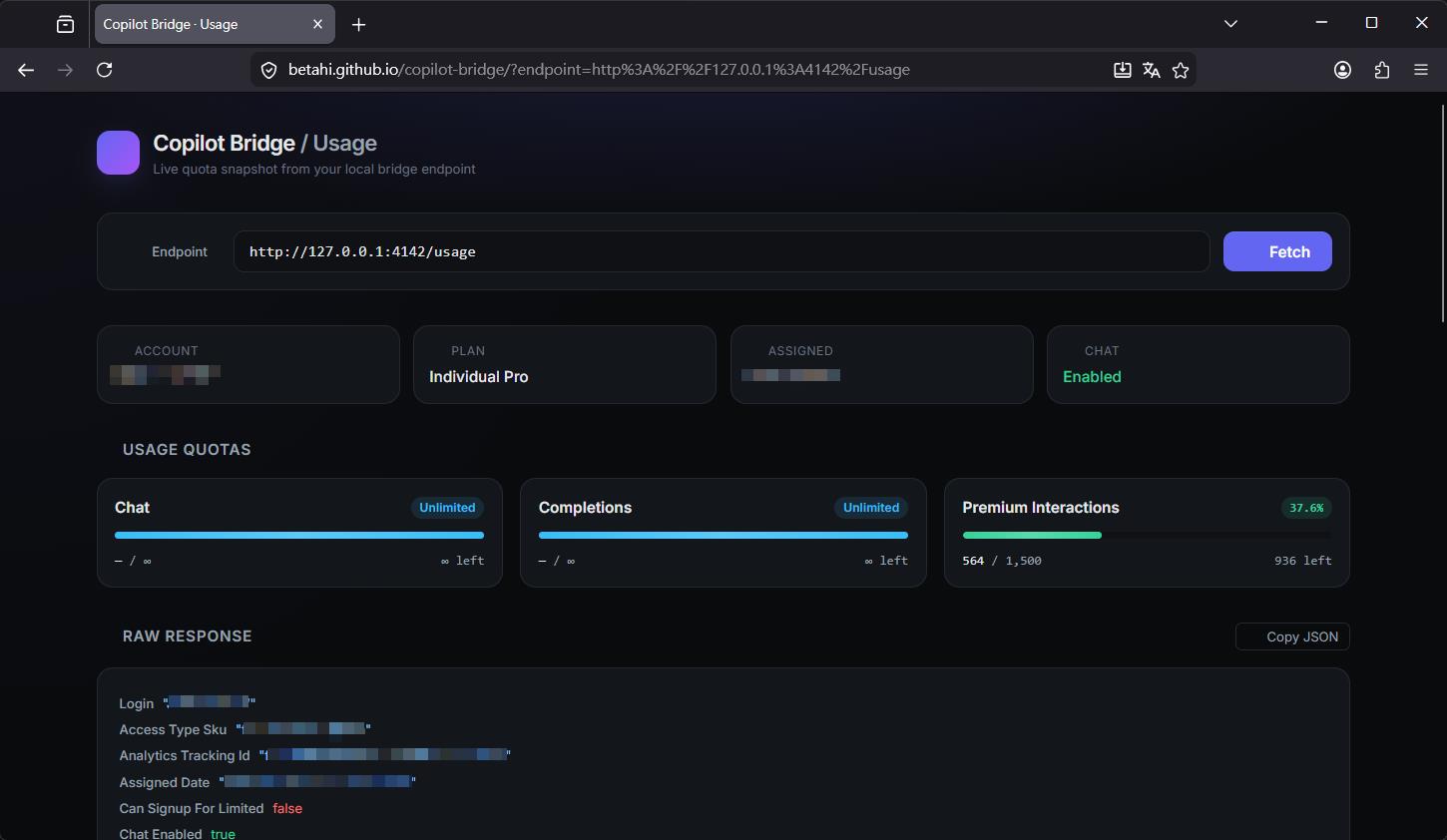
就可以觀察目前的使用狀態分析:
在 Claude Code 當中發了一個請求後,按了一下 Fetch 就會發現 premium interactions 增加了:
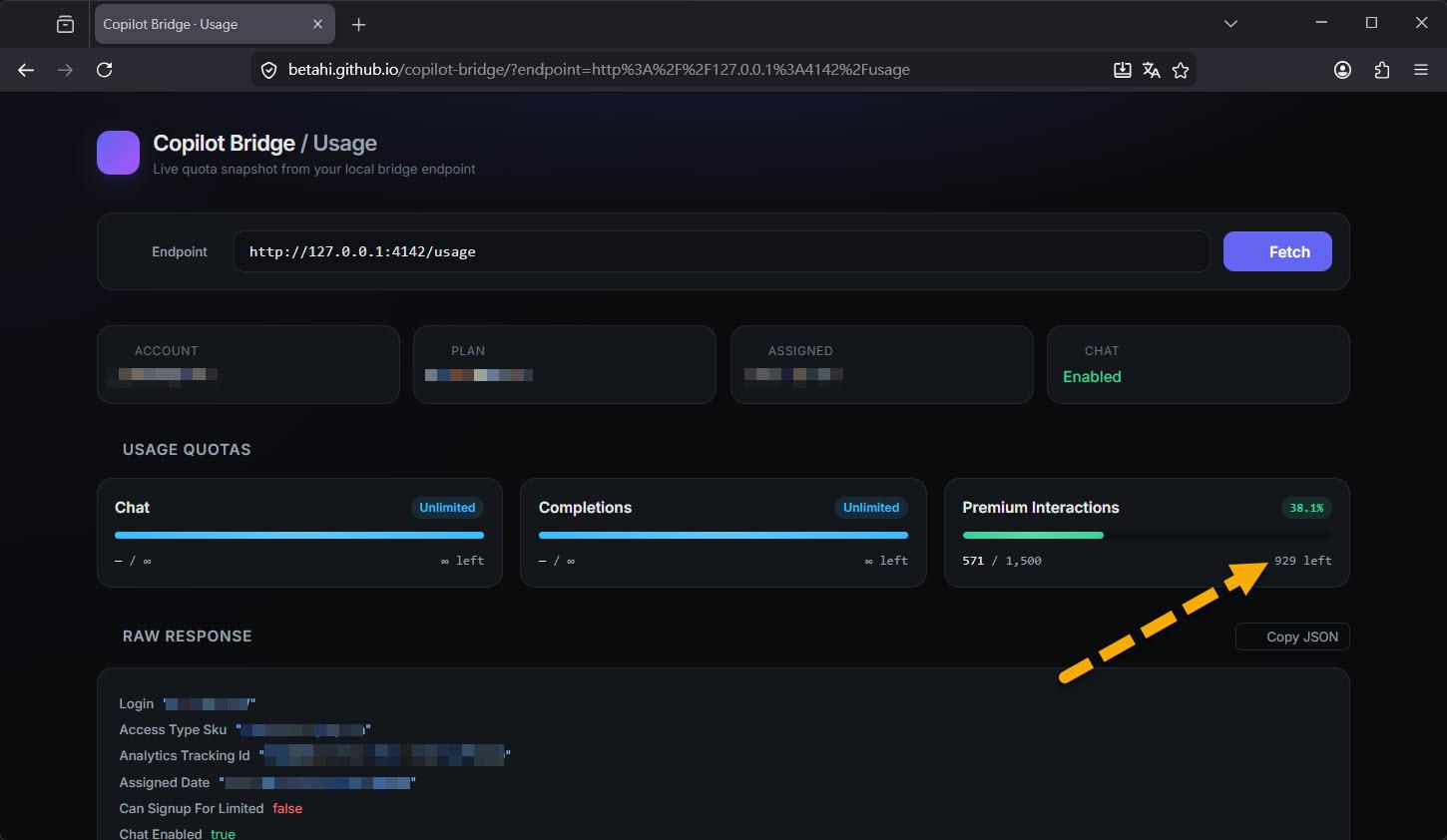
由於選擇 "gpt-5.5" 按照目前的價格計算是 x7.5 的倍率,所以從剩餘 936 掉到 929。
那 Claude Code 跟 VS Code 的 Claude 要怎設定?
在電腦的使用者帳號資料夾路徑下找到 .claude 資料夾,會看到 "settings.json":
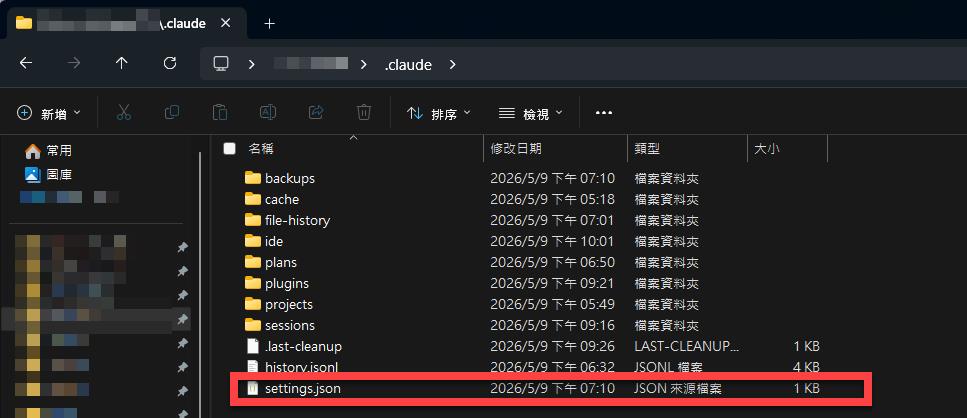
打開後加入相關設定:
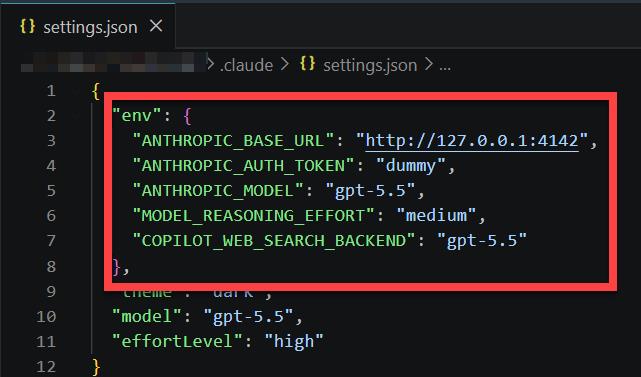
  "env": {
    "ANTHROPIC_BASE_URL": "http://127.0.0.1:4142",
    "ANTHROPIC_AUTH_TOKEN": "dummy",
    "ANTHROPIC_MODEL": "gpt-5.5",
    "MODEL_REASONING_EFFORT": "medium",
    "COPILOT_WEB_SEARCH_BACKEND": "gpt-5.5"
  }
存檔後,請重新啟動 Claude Code 或 VS Code 以利載入新設定。
接下來就可以開心地(?) 使用 Claude Code (CLI) 或 VS Code with Claude。
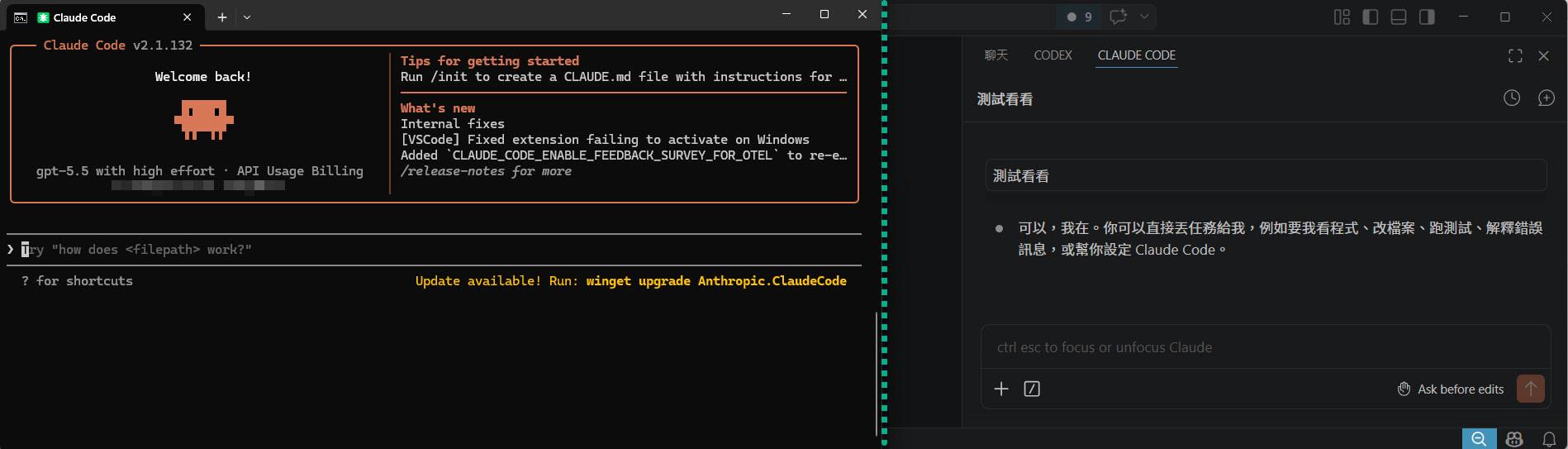
另外,這個 settings.json 的設定完成後,則無論是 Claude Code (CLI) (左) 或 VS Code with Claude (右) 都可以順利使用:
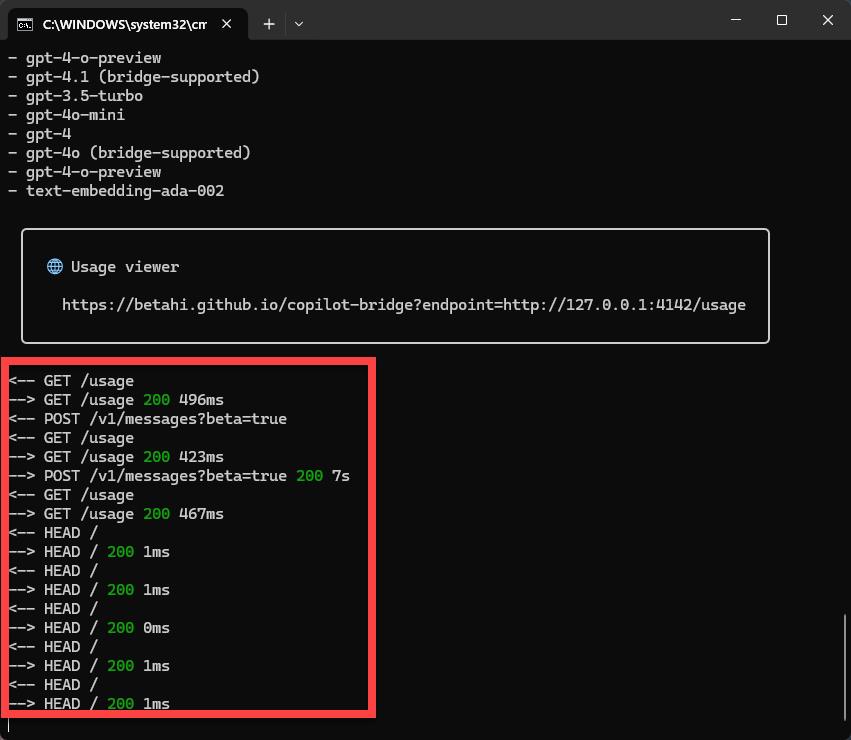
而在先前執行betahi-copilot-bridge 的 Command Line 視窗會看到:
最後整理一下本文介紹的架構:
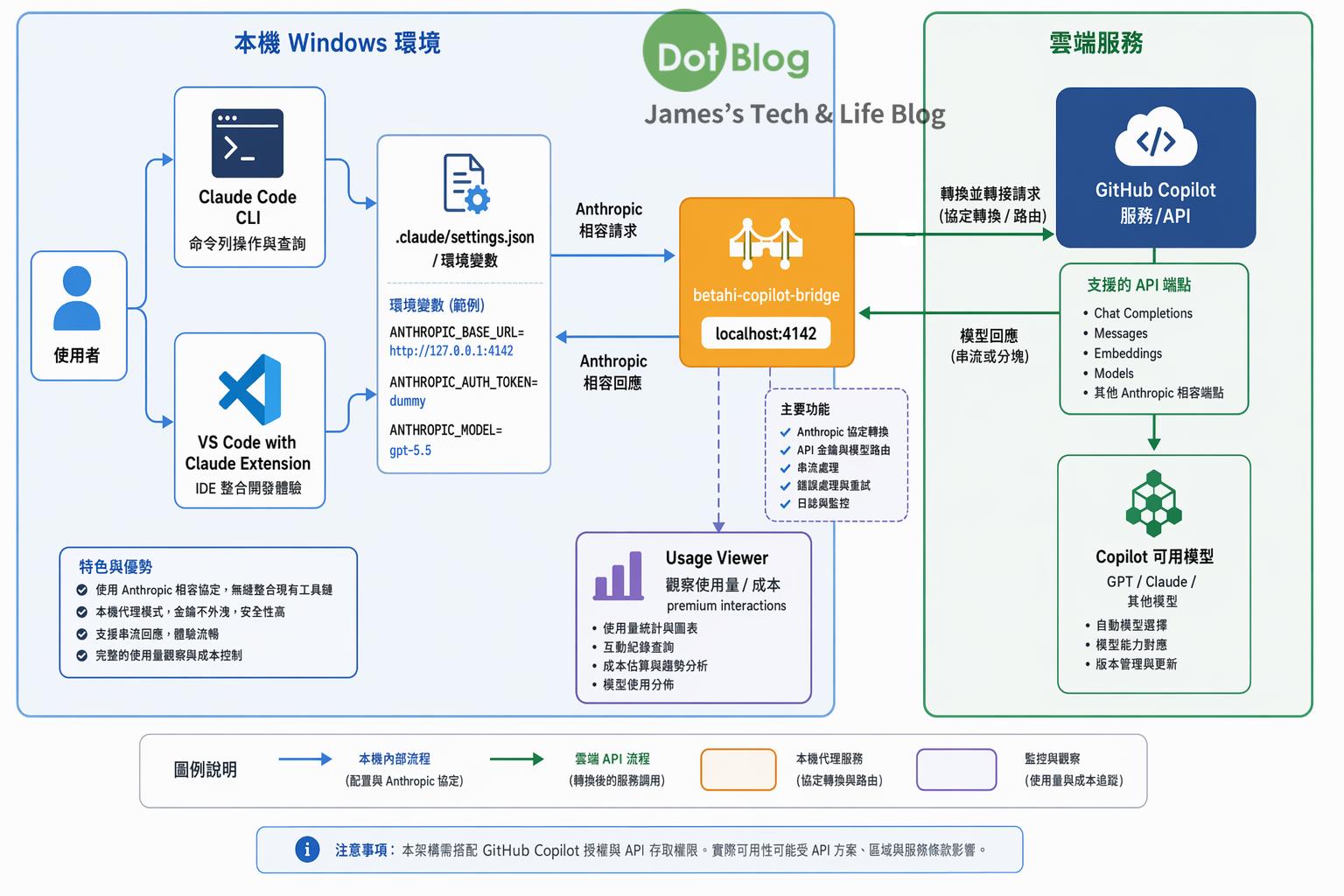
有興趣的人再玩玩看唷~~~
本介紹 Claude Desktop 無法適用。
I'm a Microsoft MVP - Developer Technologies (From 2015 ~).

I focus on the following topics: Xamarin Technology, Azure, Mobile DevOps, and Microsoft EM+S.
If you want to know more about them, welcome to my website:
https://jamestsai.tw
本部落格文章之圖片相關後製處理皆透過 Techsmith 公司 所贊助其授權使用之 "Snagit" 與 "Snagit Editor" 軟體製作。